Document encryption and the sensitive vault
The One Group Central sensitive vault stores encrypted PDFs and images. Every organization owner and administrator can open sensitive uploads; uploader-only access and chosen-recipient sharing are unavailable. Files open in the app without a Download or Export action, but someone who can view them can still capture the screen.
Check whether that access is appropriate before uploading a file. Admin upload steps live in the Sensitive Document Vault guide.
What I checked on a Mac in Chrome#
I opened a test PDF in the sensitive vault on a Mac using Chrome. The PDF displayed clearly, and I saw no Download or Export action in the app. After I deleted the dummy file and refreshed the document list, it no longer appeared.
Those observations cover the viewer and the refreshed list. They do not establish that historical backups were erased or that an already-open viewer no longer held the file. The viewing and deletion limits below explain the difference.
Follow the stored file and its key#
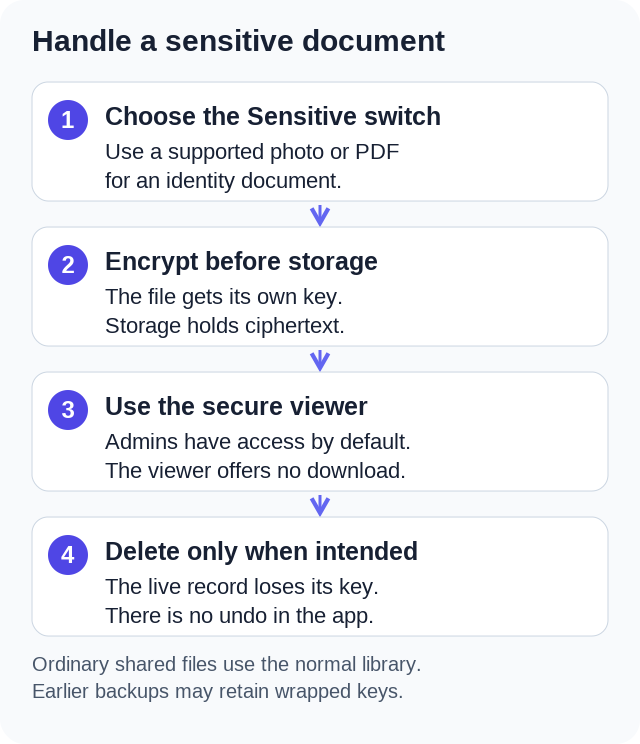
When an administrator uploads a file with the "Sensitive (encrypted)" switch on, the server generates a fresh encryption key just for that one document and encrypts the file with it before storing anything. That per-document key is itself locked with a master key. What sits in storage is ciphertext, so someone with direct access to the storage system would see only scrambled bytes.
What the server can and cannot do#
The vault uses server-side envelope encryption. Each file is encrypted with AES-256-GCM under its own 256-bit key, and that key is stored only after it has been wrapped by the vault's master key. The vault master key is kept apart from the key that protects election ballots, so neither one opens the other's data. AES-256-GCM also detects changes: if stored bytes are altered, decryption fails rather than producing a damaged file.
The One Group Central server holds the master key. The server decrypts a file when an authorized person opens it, so the vault protects against someone who reaches the storage system alone. The vault is not zero-knowledge encryption: whoever operates the server could decrypt the files.
The operator can replace the master key over time. Replacing the master key re-wraps each document's own key under the new master key; the file bytes themselves are not re-encrypted or uploaded again.
Recognizing an encrypted file#
Vault documents are encrypted at rest. In the document list they carry a lock badge so you can tell an encrypted file from a normal one. The vault accepts photo formats (JPEG, PNG, WebP, HEIC) and PDFs.
What the upload path accepts#
Uploading to the vault requires the Upload Documents permission. A vault upload goes through the One Group Central server rather than straight to storage, because the server has to see the file to encrypt it; the upload dialog shows "Encrypting and uploading…" while that happens. The rules are:
- One file of up to 25 MB per upload.
- JPEG, PNG, WebP, or HEIC photos, or a PDF. Any other type stops with "Encrypted documents must be a photo (JPEG/PNG/WebP/HEIC) or a PDF."
- No announcement. The "Send announcement to members" toggle disappears while "Sensitive (encrypted)" is on, so an ID upload never notifies members.
- Owners and admins only. The dialog says "Only owners and admins can view sensitive documents. To share with member groups, turn off Sensitive (encrypted)."
- Vault files count toward your plan's storage limit. An upload that would pass the limit is refused with "This upload would exceed your plan storage limit".
What happens when you open the file#
The secure viewer requests an encrypted document through an authenticated server route. The server checks current document access, decrypts the file and returns its bytes with "Cache-Control: no-store". It does not issue the ordinary library's shareable file URL.
The secure viewer lets you read a PDF or image in the app. It has no Download or Export action. Someone who can read the file can still capture what is displayed, for example with a screenshot or a camera.
The app renders the PDF or image from memory. The PDF viewer's text-selection menu is disabled, and images support pinch zoom. These app controls do not guarantee that a browser or operating system retains no data. Revoking access blocks a later request; it cannot recall bytes already loaded in an open viewer or erase a copy someone already made.
A denied or missing document shows "You do not have access to this document." The same message does not tell an unauthorized person whether the file exists.
The view log has a limit#
The server attempts to write the viewer's account and IP address to the organization's audit log. If that log write fails, the file can still be returned. Treat the log as recorded activity, not a guarantee that every displayed copy has a corresponding entry.
Deletion removes the live key, not historical backups#
Deleting an encrypted document clears its wrapped per-file key from the live database and marks the document inactive. A deletion audit entry remains, and the service then attempts to delete the stored ciphertext. If storage cleanup fails, that does not put the live key back. The normal app can no longer decrypt or restore the file from that live record. An earlier database backup still contains the historical wrapped key until that backup expires, so live deletion does not establish that every historical copy is already unrecoverable.
Warning: The portal has no undo or recovery action for vault deletion. Check retention requirements before confirming, and keep the historical-backup limit separate from the app's current state.
For the general concepts, OWASP's cryptographic storage guide covers encryption and key management, and NIST's media sanitization guide covers cryptographic erase. The two references do not independently verify this vault or its deletion process. References checked October 11, 2026.
Automatic retention expiry#
Organizations that need automatic expiry can enable a retention window for sensitive documents. When enabled, each vault document is automatically crypto-shredded a set number of days after upload, so identity documents do not linger longer than policy allows. Ask your administrator whether your organization uses retention expiry.
The retention window is set on the One Group Central server in days, where 0 keeps vault documents until someone deletes them; it is not a switch in the app. A check runs every hour and crypto-shreds each document whose window has passed. Each document's expiry date is fixed when it is uploaded, so a later change to the window does not move dates already set. An expiry makes the file due for the background sweep; it is not a promise that deletion occurs at the exact expiry second. An administrator who wants a window turned on or changed writes to info@onegroupcentral.com.
Regular (non-encrypted) documents work differently: they use standard storage with permission controls, described in the members' Documents guide. The wider protection picture is in the Security Overview.
Published: . Last updated: .