Resources and quick links from your organization
Resources are curated links your admins share with the whole organization: things like the bylaws site, a payment portal, or a signup form. Instead of hunting through old emails, you always find the current links in one place. Open them from the "Resources" tile on the home screen.
Requirements#
You need the Resources feature enabled and the "View Resources" permission. If you do not see the Resources tile, ask your admin.
Find a resource#
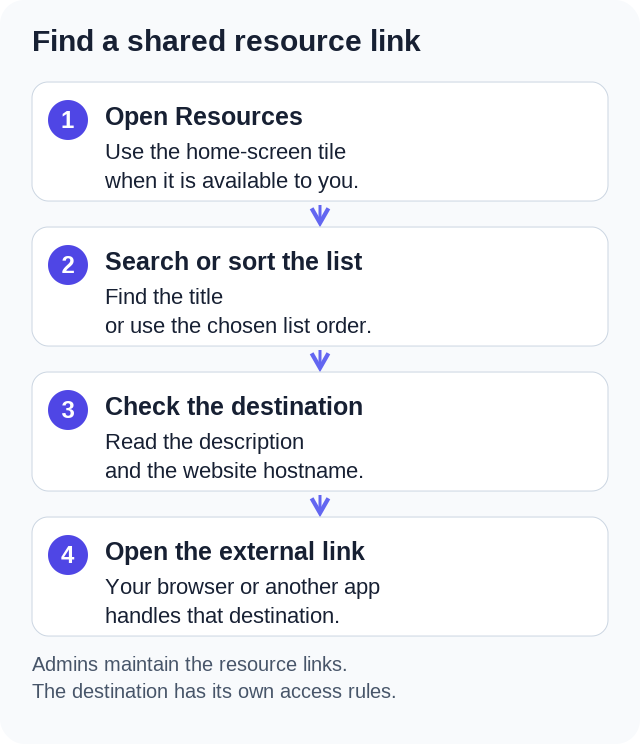
- Tap the "Resources" tile on the home screen.
- Scroll the list, or type in the search bar to filter it. A count shows how many links match.
- To change the order, use the "Sort" control: "Default order" (the order your admins arranged), "Name A to Z", or "Name Z to A".
Each tile shows the link's title, a short description, and the website's hostname so you can see where it leads before you tap.
Open a link#
Tap a tile. The link opens outside the app in your browser (or the matching app). Tapping also clears the blue unread dot on that resource and lowers the Resources badge on your home screen.
Note: A blue dot means you have not opened the link yet. New resources also count toward the unread badge on the Resources home tile.
Looking for files rather than links? Those live in Documents. One-time messages from your admins arrive as Announcements instead.
Troubleshooting#
If the list is empty, your admins have not added any links yet, or the ones that exist are targeted to groups you are not in. Tap the Refresh icon in the top bar, then ask your admin.
If a link will not open, the destination site may be down. Try again later, or tell your admin the link may be outdated.
How search and sorting work#
The Resources search box matches the words you type against three things on each link: the title, the description, and the web address itself. Searching for part of a site name, such as "bylaws" or the name of your payment provider, finds a link even when the title uses different words. The search ignores capital letters and runs on the links already loaded on your device, so results update as you type.
While you search, the count line changes from the total, such as "12 resources", to a match count such as "3 of 12". When nothing matches, the screen shows "No resources match" followed by your search words. Clear the search box to see the full list again.
"Default order" is the arrangement your admins set. Links are grouped by the category an admin gave each one, then placed by a sort number an admin chooses (lower numbers appear first), then by title. Categories are used only for that ordering; the tiles themselves do not show a category name. Your choice of sort lasts until you leave the Resources screen.
What you see when something goes wrong#
Resources has three messages worth knowing. "No resources yet." means the list loaded and there is nothing for you in it. A message starting with "Could not load resources" means the request failed, often because the connection dropped; tap "Retry" to try again. "You don't have access to Resources" means your "View Resources" permission is off, and "This feature has been turned off for your organization." means an admin switched Resources off. Only an admin can change either of those last two.
A long description is cut to two lines on its tile. If you need the rest, open the link or ask an admin to shorten the description.
Who manages resources#
Owners, and admins with the "Manage Resources" permission, add, edit and delete resource links from "Resources" in the Admin Panel. Every link must start with http:// or https://, and a title can be up to 255 characters. When an admin creates a link, they can limit it to particular member groups, which is why two members of the same organization can see different lists. An admin who edits an existing link changes it in place, so the tile you already know points at the new address after you refresh.
How do I find the current link rather than an old email?#
Open Resources and search for the link's title, such as your association's bylaws site or event signup form. Check the description and hostname before opening it. "Name A to Z" is useful when you remember the title; "Default order" shows the arrangement your admins chose.
A resource is a link to another destination, so the destination's sign-in, availability and contents are separate from portal access. If an old email's link differs from the resource, ask an admin which one is current. Members cannot edit the resource themselves. Tell the admin its title and what happens when you open it so they can correct the intended link.
RFC 3986 defines the parts of a web address, including the host, which is the name each resource tile shows. CISA's phishing guidance lists incorrect links, such as a misspelled address, as a warning sign and suggests going to a verified website or typing an address you know instead of following a link in a message. Those references explain web addresses and link safety in general; your admins decide where each resource points.
FAQ#
Why do some resources have a blue dot?#
The dot marks links you have not opened yet, including ones that were recently added. Tapping the link clears it.
Can I add my own resource?#
No. Resources are managed by admins. If you have a link worth sharing, send it to an admin and ask them to add it.
Why can't I see the Resources tile?#
Either the Resources feature is turned off for your organization or you do not have the "View Resources" permission. Ask your admin to check.
Does opening a resource sign me in to that website?#
No. A resource only opens the address in your browser. Any sign-in on that site is separate from your One Group Central account.
Why does a link I opened still show a blue dot on another device?#
The unread dot clears on the device where you tapped the link. Refresh the Resources list on the other device to load the current state.
Published: . Last updated: .