What is One Group Central?
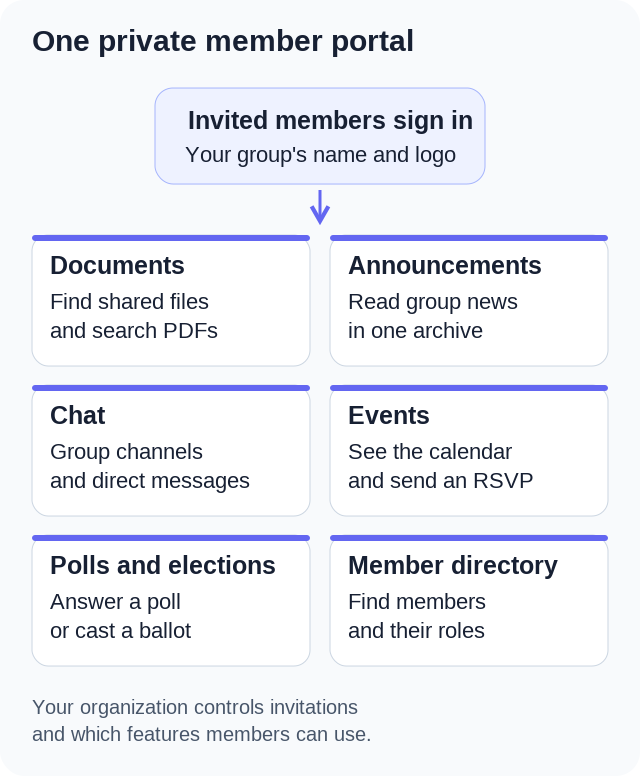
One Group Central is an all-in-one private member portal. Your organization gets one place for its documents, announcements, chat, votes, meetings and member directory. Members sign in through a browser on a phone or computer. They can also install the portal from their browser.
It is built for homeowners associations, labor unions, nonprofits, cooperatives and professional associations. Instead of asking members to check email, a group text, a shared drive and a separate ballot tool, you can give them one place to go.
Find the part your group needs#
| When your group needs to… | Start here |
|---|---|
| Find the current bylaws or last meeting's minutes | Documents and useful links |
| Get an official notice out, or continue a conversation | Announcements and chat |
| Vote on a proposed change or ask a quick question | Elections, receipts and polls |
| Know when the next meeting is and who belongs to the group | Calendar and members |
Your home screen shows the sections your organization has enabled and allowed you to use. The full guides below explain each feature in detail. Expand a Watch panel to see its video, then press Play. The walkthroughs use demo organizations rather than customer accounts.
Keep current information easy to find#
Documents: stop searching old email attachments#
Keep bylaws, minutes, policies and other shared files in the Documents section. Members can browse categories, search and open PDFs inside the app. An admin uploads the files and chooses any group restrictions, so members have a place to look for the version their organization shares.
Read the member's document guide, or learn how to publish and organize documents.
Watch: How to Find and Search a Document 1:49
Press Play to load the YouTube player. Closing this walkthrough stops playback.
Read the full guide: Viewing and searching documents. Watch on YouTube (opens a new tab).
Watch: How to Upload a Document 3:15
Press Play to load the YouTube player. Closing this walkthrough stops playback.
Read the full guide: Publishing documents to your members. Watch on YouTube (opens a new tab).
Sensitive files need a different access check#
The Sensitive (encrypted) upload option encrypts selected PDFs and images at rest and restricts their viewing. Every organization owner and admin can currently open sensitive uploads. It does not offer uploader-only or chosen-recipient sharing, so do not use it for a personal file you need to keep from those administrators. A viewer without a download button also cannot prevent screen capture.
Check who can open a sensitive file and read the storage, viewing and deletion limits before uploading one.
Watch: Upload and open a sensitive PDF 0:54Close walkthrough
Press Play to watch. Closing this walkthrough pauses playback.
Read the full guide. Read the video transcript. Download the MP4.
Resources: keep the useful links together#
Put links to forms, outside services and other useful websites in Resources, rather than burying them in an old message. Those websites still control their own access and sign-in.
Watch: Find useful group links 0:42Close walkthrough
Press Play to watch. Closing this walkthrough pauses playback.
Read the full guide. Read the video transcript. Download the MP4.
Keep notices and conversations with the group#
Announcements: a place for official updates#
Use announcements for notices members need to find again. The home tile is called News; it opens Announcements. Admins can compose a notice, add attachments and publish it now or schedule it. Members can open the notice in the portal even if they missed a notification.
Email, push and optional paid texting depend on the organization's settings and the recipient's device or delivery settings. Posting a notice does not guarantee that everyone has read it.
Read announcements as a member, or follow the admin's publishing steps.
Watch: How to Read Announcements from Your Organization 1:15
Press Play to load the YouTube player. Closing this walkthrough stops playback.
Read the full guide: Reading announcements from the News tile. Watch on YouTube (opens a new tab).
The admin video below shows composing and scheduling a notice. Texting is off in that recording; it does not demonstrate sending a text message.
Watch: Compose and schedule an announcement 2:39
Press Play to load the YouTube player. Closing this walkthrough stops playback.
Read the full guide: Sending Announcements and Broadcasts. Watch on YouTube (opens a new tab).
Chat: discuss things without another group messaging app#
Use channels for group conversations and direct messages for individual conversations. Threads keep replies with the message they belong to; attachments and bookmarks help you share a file or find a message again.
Learn channels, messages and threads, save messages with bookmarks, or see blocking and reporting controls. Admins can manage the group's chat channels.
Watch: Send a message, open a thread and find bookmarks 0:48Close walkthrough
Press Play to watch. Closing this walkthrough pauses playback.
Read the full guide. Read the video transcript. Download the MP4.
Social: find the organization's public channels#
If your organization enables Social, members can find its configured social channels from the portal. External networks still control their own content and access. This does not publish your private member conversations to those networks.
Find Social on the home screen, or configure the organization's social links.
Watch: Set up and find social links 0:43Close walkthrough
Press Play to watch. Closing this walkthrough pauses playback.
Read the full guide. Read the video transcript. Download the MP4.
Make a decision and keep the record#
Elections: put the questions on one ballot#
An admin creates an election for eligible members. A ballot can contain several questions, with a separate selection limit for each question. Members open Elections and submit their choices; officers see totals rather than a list of each person's choices.
There are important privacy limits. The service receives choices before encrypting them and could link them to voters. Small or unanimous results can also make a person's choice easier to infer. The zero-knowledge protocol is not enabled for live elections.
See the member's voting steps, build a ballot as an admin, and understand voting privacy.
Watch: Answer questions and submit a ballot 1:42Close walkthrough
Press Play to watch. Closing this walkthrough pauses playback.
Read the full guide. Read the video transcript. Download the MP4.
Receipts: check the recorded ballot entry#
After voting, a member can use the receipt saved on their voting device to check the recorded entry in the app. This check uses the service's records. It does not independently prove the final tally, and it does not make the service unable to link a voter to their choices.
Follow the receipt-checking steps and read what result verification can and cannot show.
Watch: Check and keep a ballot receipt 1:33Close walkthrough
Press Play to watch. Closing this walkthrough pauses playback.
Read the full guide. Read the video transcript. Download the MP4.
Polls: ask a quick question#
Use a quick poll to ask members about a preference, such as a meeting time. Polls support single or multiple selections and an optional anonymous response setting. Keep the distinction clear: an informal poll is not a substitute for following your organization's rules for an official election.
Answer a poll, or create and close a poll. Multi-question surveys are a release preview, not part of the verified live app.
Watch: Answer a quick poll 0:45Close walkthrough
Press Play to watch. Closing this walkthrough pauses playback.
Read the full guide. Read the video transcript. Download the MP4.
Organize meetings and people#
Calendar: find the date and respond#
The Events tile opens the Calendar. Members can see meeting details and RSVP; admins can manage events and reminders. A calendar subscription lets members see the group's dates alongside their own calendar.
Use the calendar and RSVP, or manage events as an admin.
Watch: Find an event and change your RSVP 0:46Close walkthrough
Press Play to watch. Closing this walkthrough pauses playback.
Read the full guide. Read the video transcript. Download the MP4.
Members: know who is in the group#
The Members tab opens a searchable directory. Admins invite people, manage membership and use groups to organize access. A staged roster lets an admin review an imported member list before sending invitations. Check election eligibility before opening a vote: moving an existing member into a group afterward does not add them to that ballot.
Find someone in the directory, invite members, review a staged roster, or set up member groups.
Watch: Find a member in the directory 0:47Close walkthrough
Press Play to watch. Closing this walkthrough pauses playback.
Read the full guide. Read the video transcript. Download the MP4.
Watch: How to Invite a Member 2:07
Press Play to load the YouTube player. Closing this walkthrough stops playback.
Read the full guide: Inviting Members One at a Time. Watch on YouTube (opens a new tab).
Start as a member or set up your organization#
If your organization already uses One Group Central, ask an admin for your personal invitation link. There is no public member sign-up. Accept your invitation, sign in, then take the home-screen tour. Installation is optional; the install guide explains the browser and app options.
If you are setting it up for a group, start a free 60-day trial with no credit card, then follow the organization setup guide. Paid plans start at $49 a month for the organization. Compare prices, member limits and add-ons.
Members use the portal's shared content and activities. Admins manage the areas an owner permits them to manage. Owners control permissions, organization settings and billing. Admins and owners open the Admin Panel from the home screen; members do not see it. See roles and permissions, feature switches and branding settings for the setup details.
Features that are not live yet#
Multi-question surveys and member payments are release previews. The zero-knowledge voting protocol is also not enabled for live elections. Their documentation describes the limits and release status; seeing a preview page does not mean your organization can use it today.
See how elections and voting work, or review member rosters, groups and invitations. When you are ready to set up your organization, start a free 60-day trial.
Published: . Last updated: .