Admin Panel overview and dashboard tour
The Admin Panel is where owners and admins run the organization: members, invites, content, settings, and billing all live here. It sits alongside the regular member experience, so you can switch back and forth at any time. Read this first, then go to the article for the task you have.
Requirements#
You need an admin or owner account. Members do not see the Admin Panel tile at all. Individual drawer items can also be hidden depending on your permissions, which is normal (see below).
Opening the Admin Panel#
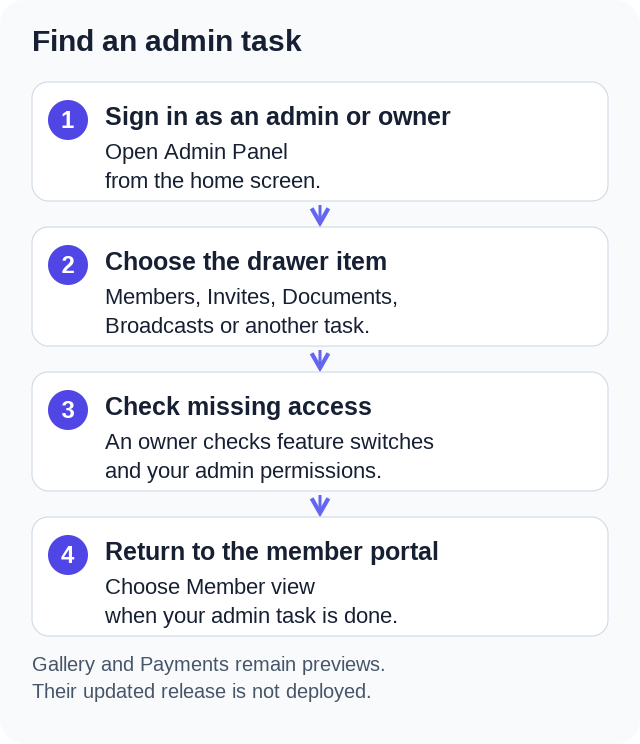
- Sign in and go to your home screen.
- Tap the "Admin Panel" tile on the home grid.
- The app bar changes to "YourOrgName Admin" and a navigation drawer appears.
The drawer, item by item#
- "Dashboard": stats, activity, and quick actions (described below).
- "Members": search members, promote or demote, suspend, and manage group assignments.
- "Invites": send single invites, upload a CSV of invitees, and manage pending, accepted, and revoked invites. See inviting members.
- "Staged rosters": upload people without inviting them, and choose which groups or individuals can review the list before it is sent. See staged rosters.
- "Documents": upload and manage the document library, including the encrypted vault.
- "Broadcasts": compose, schedule, and categorize announcements (members see these on the News tile, which opens the Announcements screen).
- "Elections": create and run anonymous elections.
- "Polls": create quick polls, anonymous or named.
- "Calendar": create events, import .ics files, and manage sync sources (members see these under the Events tile, which opens the Calendar screen).
- "Event gallery": create photo albums, choose viewing groups and editors separately, and control publication. Requires Manage Event Gallery. See managing event galleries.
- "Chat": create, archive, and delete chat channels.
- "Resources": manage the curated links list.
- "Group Analytics": create groups and view participation breakdowns.
- "Audit Log": a searchable record of admin actions, with CSV export.
- "Settings": eight tabs covering identity, theme, features, permissions, legal, contact, social, and notifications.
- "Collections" (release preview, not yet deployed): manage dues, fees, event payment requests and approved collectors. Requires Manage Payments. See managing payments.
- "Billing": the organization's One Group Central subscription plan, usage and billing.
- "Permissions" (owner only): per-admin capability switches.
- "Member Permissions": per-member capability switches.
- "Member view": returns you to the regular member experience.
Why a drawer item might be missing#
There are two reasons, and both are by design:
- The feature is turned off for the whole organization in Settings > Features.
- Your admin account lacks the matching permission (owners control these on the Permissions screen).
If you expect to see an item and do not, ask an owner to check roles and permissions.
"Collections" remains in the drawer when Payments is turned off so authorized admins can review history. It still requires Manage Payments. Members can reach their own history through Profile > "Payment history".
The Dashboard#
The Dashboard (the first drawer item) shows:
- A first-win card: until three people have been invited, a card reads "Get your portal moving" and asks you to invite your first 3 members, with a progress line ("N of 3 invited") and an "Invite your first member" button.
- A goal card: "What do you want this portal to achieve? Write it in one line". The goal card note is stored on the current device only (140 characters) and is never sent to the server, so the note will not follow you to another device.
- OVERVIEW stat cards: tappable cards for Members, Invites, Elections, Polls, Documents, Broadcasts, Events, Chat, Links, and Groups. Tapping a card jumps to that screen.
- ACTIVE ELECTIONS and OPEN POLLS: what is currently running.
- PENDING INVITES: outstanding invites with an expiry countdown.
- RECENT ACTIVITY: the last 10 audit entries.
- GROUPS: your groups at a glance.
Tip: The stat cards are the fastest way to navigate. Tap Members to jump straight to the member list.
Returning to member view#
Tap "Member view" at the bottom of the drawer. You are back on the regular home grid; the Admin Panel tile remains available whenever you need it.
Why does an administrator have only some controls?#
An administrator's job and access should be considered separately. NIST's role-based access-control reference and OWASP's authorization guide give background on assigning access. Use the portal's Permissions screen and the steps linked here to check an account; outside guidance does not verify that account's switches.
References checked October 12, 2026. This date records the source-link check, not a human or specialist review of this article.
FAQ#
Why can't I see the Admin Panel tile?#
Only admins and owners see the Admin Panel tile. If you believe you should be an admin, ask an owner to promote you on the Members screen.
Why is a drawer item missing for me but visible to another admin?#
Either the feature is disabled org-wide in Settings > Features, or your account is missing that specific admin permission. Owners can adjust both.
Where did my goal card note go on my other device?#
The goal note is stored only on the device where you wrote it. It does not sync.
Published: . Last updated: .