Staged rosters, upload people without inviting them
A staged roster in One Group Central is a list of people uploaded as a CSV under "Staged rosters" in the Admin Panel, and nobody on it has been contacted. No email goes out, no invitation link exists, and none of them count against your plan's member limit until you press send.
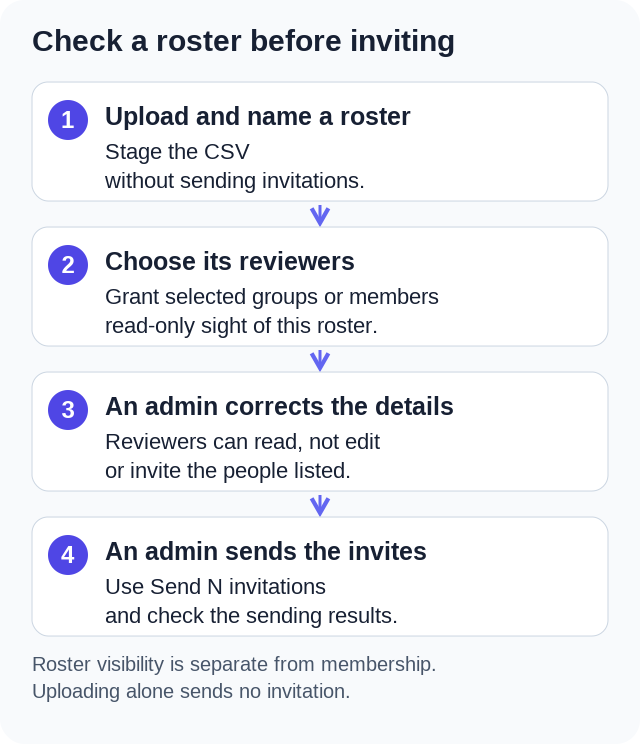
A staged roster lets representatives review a spreadsheet before its invitations are sent. The people who can confirm a roster is correct are usually building representatives or committee chairs, not the officer holding the file. Without a staged roster, the only way to show them the list is to invite everybody first.
If you already know the list is correct, bulk invites by CSV sends straight away and is faster.
A five-person CSV I reviewed#
I uploaded a CSV with five real members. I did not need to prepare or correct the file before uploading it. After the import, I reviewed and approved the list.
Requirements#
You need the "Invite Members" admin permission to upload, edit or send a roster. Owners always have it. People you share a roster with can review it while signed in without the "Invite Members" permission; see Choose who can see it.
A staged entry creates neither an account nor an invitation link. Staged people cannot sign in from that entry.
Upload a roster#
- Open the "Admin Panel", then choose "Staged rosters" in the drawer.
- Press "Upload roster" and pick a CSV.
- Use the same columns the bulk invite flow accepts: name, title, email, role. A header row is recommended but not required.
- Give the roster a name you will recognise later, such as "September new hires", and press "Stage them".
The roster appears immediately with a count of how many people are waiting. This CSV uploader does not import phone numbers, so each row needs an email address. Rows without one are skipped, as is the same address listed twice in one file, and the upload tells you how many it skipped.
Choose who can see it#
A new roster is visible only to admins who can invite. Nobody else sees it, and nobody else can tell it exists. To widen that, open the roster and press "Change":
- "Groups": anyone in a group you tick can read the roster. Use this when a whole committee should check their own list.
- "Individual people": name someone directly. Use this for a representative who is not in a group.
Anyone you grant sight of a roster can read the roster and nothing else. People with read access cannot edit the roster, send the roster, or invite anybody. The card on the roster screen says "They can read it. They cannot edit it or send it."
To take a roster back to admins only, open "Change", untick everything, and save.
Note: Staged roster visibility works the opposite way to documents and announcements. There, leaving the group list empty means every member can see the item. Here, an empty list means nobody outside your invite admins can. A roster is a list of names, titles and email addresses for people who have not agreed to anything yet, so it stays closed unless you open it.
Send the invitations#
When the list is right, open the roster and press the send button, which reads "Send N invitations" with the real count. It asks you to confirm because this is the first moment anybody on the roster is emailed.
Sending turns each row into an ordinary invitation. Everything afterwards behaves exactly as it always has: the same seven day expiry, the same accept screen, the same entry in Invites, and any groups you set on a row are applied when that person joins.
Active members and unexpired pending invitations count toward your plan's member limit. Rows still staged do not.
Some rows are skipped rather than failed:
| Skipped when | Why |
|---|---|
| The person is already an active member | An active member does not need inviting |
| The person already holds a live invitation | A second one would only confuse them |
| Your plan's member limit is reached or already exceeded | The remaining rows stay staged |
If your plan limit was lowered below the current active member count, the remaining rows also stay staged.
Because skipping is not failing, sending again is safe. If a roster stopped part way because you hit your member limit, raise the limit and send the same roster again: the people already invited are left alone and only the rest go out.
Fix one person#
You do not have to redo a whole roster because one address is wrong. Open the roster and use the pencil on that person's row to correct their name, email address, title, or role, then press "Save". Only the fields you change are touched.
The "Role" choice in the same dialog is "Member" or "Admin", and it opens on the role the row already has. To invite one person on the roster as an admin, choose "Admin" and press "Save". Their row then shows "Admin", their name and title from the upload stay as they were, and their invitation goes out as an admin invitation when you send the roster. Reserve Admin for people who need the management tools; an owner can adjust admin permissions after they join.
The bin on the same row removes one person from the roster. Nobody is notified, either way.
Two things the row actions will not do:
- A row must keep a way to reach the person. Clearing the email address on somebody who has no phone number is refused, because the row could never be invited.
- A person who has already been invited is locked. Editing or removing their row would not change or withdraw the invitation that already went out, so the app declines and points you at Invites, where revoking actually works.
Discard a roster#
Press the bin icon on a roster to delete it. The staged list goes; invitations already sent from it are untouched and stay in Invites, because withdrawing somebody's live invitation is a separate decision.
Common mistakes#
- Sharing a roster and expecting edits back. Viewers can read a roster, not change it. If a representative spots a wrong address, they tell you and you fix the row.
- Assuming an empty visibility list means everyone. It means admins only. See the note above.
- Uploading the same list twice. Two rosters can hold the same person without complaint; duplicates are only rejected inside a single upload. The send step is what protects you, since anybody already invited or already a member is skipped.
RFC 4180 describes CSV records and quoting, useful when a name or title contains a comma. The upload summary remains the authority on which rows were staged or skipped; the CSV reference does not promise that a given file will be accepted.
Published: . Last updated: .