Two-factor authentication setup and use (TOTP)
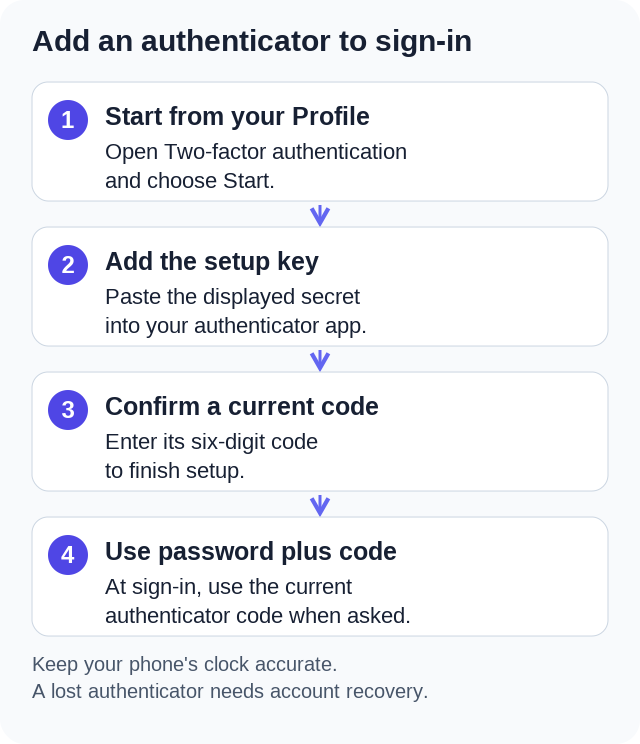
Turn on One Group Central two-factor authentication from your Profile: tap "Start" in the "Two-factor authentication" section, add the secret key to an authenticator app, then type the 6-digit code it shows and tap "Enable". After that, sign-in asks for a current code from the app after your password.
Two-factor authentication (often called 2FA or TOTP) adds a second lock to your account. Even if someone learns your password, they cannot sign in without a 6-digit code from an authenticator app on your phone. Any member, administrator, or owner can turn it on from their profile.
What TOTP is, in plain words#
TOTP stands for time-based one-time password. When you enable it, the portal gives you a secret key that you store in an authenticator app such as Google Authenticator, Authy, or 1Password. The app then generates a fresh 6-digit code every 30 seconds. At sign-in you type the current code, which proves you hold the device with the secret. Because the code keeps changing, an old code is useless to an attacker.
RFC 6238 defines how time-based authenticator codes work and recommends a 30-second time step. A fake sign-in page can still capture a code: NIST's guidance explains why manually entered codes are not phishing resistant. Check that you are at your organization's app.onegroupcentral.com address before entering one. References checked October 11, 2026.
Requirements#
You need an authenticator app installed on a phone or in a password manager. Google Authenticator, Authy, and 1Password all work. There is no plan or permission requirement, so everyone can enable 2FA.
Turn on two-factor authentication#
- Tap the person icon in the top right of the home screen to open your Profile.
- Find the "Two-factor authentication" section and tap "Start".
- The app shows a copyable secret key with the instruction "Add this key to your authenticator app". Copy the key.
- In your authenticator app, add a new account and paste the secret key. The member app shows the key as text, so use your authenticator's manual or "enter a setup key" option.
- Your authenticator now shows a 6-digit code. Type it into the confirmation field in the portal.
- Tap "Enable". Two-factor authentication is now active.
Tip: Add the account to an authenticator that backs up or syncs (Authy or 1Password), so a lost phone does not lock you out.
Signing in with a code#
Once 2FA is on, your password alone is not enough. Sign in with your email and password as usual. The portal then shows an "Authenticator code" field and asks you to finish signing in. Enter the current 6-digit code from your app and submit again. If you have not turned 2FA on, you never see this field.
Turning it off#
- Open your Profile via the person icon.
- Open the "Two-factor authentication" section.
- Enter a current 6-digit code from your authenticator and tap "Turn off". You cannot disable 2FA without a valid current code.
Code and key rules#
The secret key is 32 characters long and uses only the letters A to Z and the digits 2 to 7. Tap the key in the dialog to copy it; the app confirms with "Key copied". If your authenticator asks for details, choose a time-based code with 6 digits and a 30-second period, which are the settings the portal uses.
A code is exactly six digits, and the "6-digit code" field stops at six. To allow for a phone clock that is slightly off, the server accepts the code for the current 30-second window and for the window on either side. A code that changed a few seconds before you pressed the button still works.
Each press of "Start" makes a brand new key and throws away any key from an earlier, unfinished attempt. If you closed the dialog and started again, delete the old entry from your authenticator, or its codes will be refused. "Turn off" deletes your key too, so turning two-factor back on later means adding a new entry.
What you see when a code fails#
| Where | Message |
|---|---|
| Enabling, wrong code | "Invalid code" |
| Signing in, no code yet | "Enter the code from your authenticator app to finish signing in." |
| Signing in, wrong code | "That code was not valid. Enter the current code from your authenticator app." |
Every sign-in attempt with a code counts toward the sign-in limit of five tries a minute from the same network, so pause after a few failures rather than guessing.
Turning two-factor on or off is recorded in your organization's audit log. Resetting your password does not turn two-factor off: after a reset, sign-in still asks for a code.
Troubleshooting#
If a code is rejected, remember that codes expire every 30 seconds. Wait for a fresh one and try again. If codes keep failing, your phone's clock may have drifted, so make sure it is set to automatic network time. More help is in Can't sign in.
If you lost your authenticator, you cannot generate codes without the secret, and your organization's admins cannot reset two-factor from the app. Email info@onegroupcentral.com or use the /support page for help getting back into your account.
Our team first confirms that you are the account holder, then turns two-factor off for your account. That also signs your account out on every device, so anyone holding your lost phone is signed out too. Sign in again with your email and password alone, then turn two-factor back on from your Profile with your new authenticator.
FAQ#
Do I need two-factor authentication?#
Two-factor authentication is optional. We recommend it, especially for administrators and owners, whose accounts can change settings for the whole organization.
Can I use it on more than one device?#
Yes. Add the same secret key to authenticator apps on multiple devices while enrolling, or use an app that syncs across devices.
What happens if I get a new phone?#
If your authenticator app synced or was restored from backup, codes keep working. If not, email info@onegroupcentral.com for help getting back in, then turn two-factor on again from your Profile.
Why can't I turn 2FA off?#
Disabling requires a current 6-digit code. If you no longer have the authenticator, email info@onegroupcentral.com for help.
Does a password reset remove two-factor?#
No. A password reset changes your password and signs you out on every device, but your authenticator stays linked. Sign in with the new password and a current code.
Published: . Last updated: .