Managing chat channels and moderation
The Chat admin screen is where you create and organize your organization's chat channels. Some channels you create yourself; others appear automatically: every member group gets its own channel, and the org-wide General channel exists for everyone. Moderating what members post happens in the member chat screen, covered below.
Requirements#
You need the Chat feature enabled and the "Manage Chat Channels" permission. If the Chat drawer item is missing, ask your owner to check Settings > Features and your permissions. See feature toggles for how features are switched on and off.
Create a channel#
- Open the admin area and choose "Chat" from the drawer.
- Press "New channel".
- Enter a "Channel name" (for example, announcements) and an optional "Topic (optional)".
- Use the group targeting picker to restrict the channel to specific groups. The default is all members; a targeted channel is visible only to members of the chosen groups (admins always see it).
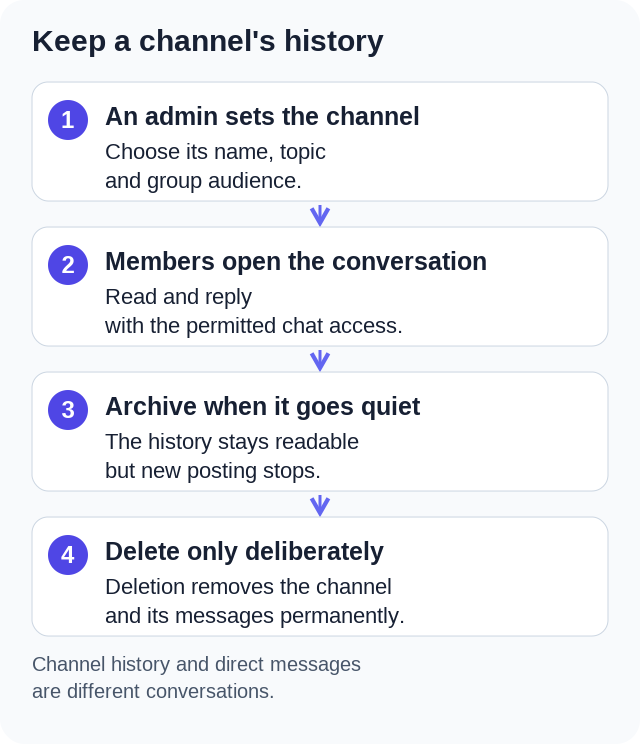
- Save. The channel appears in the ACTIVE section and in members' chat channel lists.
Automatic channels#
Every member group automatically gets its own channel containing that group's members. You do not create or configure group channels; group channels follow the group.
An org-wide General channel is created for all members. You can turn it off with the 'Org-wide "General" chat channel' switch in Settings > Features; turning it off archives the channel, and turning it back on brings a fresh General back. Group channels and direct messages are unaffected by that switch.
Archive vs delete#
Channels are listed in ACTIVE and ARCHIVED sections. Each channel's menu has "Rename / topic", "Archive" (or "Restore"), and "Delete".
- "Archive" hides the channel from members instantly but keeps the channel's full history. "Restore" brings an archived channel back exactly as it was. Archive when a channel has run its course but the conversation is worth keeping.
- "Delete" on a chat channel is destructive. The Delete confirmation warns that deleting "permanently removes the channel and all N of its messages. This cannot be undone." Use Delete only when the channel history genuinely should not exist anymore.
Note: Deleting a group's channel does not last. Empty group channels reappear automatically because every group gets a channel. Deleting one wipes its history, but a fresh, empty channel comes back for that group.
Moderating messages#
Admins with channel management can delete any member's message directly from the member chat screen: long-press the message and choose "Delete (moderate)". The message is removed for everyone in the channel.
Members can also report a message they find abusive. Reports flag the specific message for review by platform staff; reported messages are the only chat content platform staff can ever read, and private conversations stay private otherwise. If a member raises a problem with you directly, you can moderate the message yourself with "Delete (moderate)" without waiting on a report.
Common mistakes#
How should a board keep a discussion after its project ends?#
For a board project, select the Board group when creating the channel, then check the audience with a regular member account. Administrators can see targeted channels, so an administrator's view alone cannot prove that the restriction works for members.
When the project ends, choose "Archive" if the channel's messages should remain available for later restoration. Choose "Delete" only after deciding the history can be removed permanently. If the channel was created automatically for a group, deletion clears that history but a fresh empty channel returns. Do not delete the Board group merely to remove a conversation: that also changes the group's other audiences.
- Deleting a channel to "clean it up". Archiving a channel keeps the history and hides the channel; deleting a channel erases everything permanently.
- Deleting a group channel expecting it to stay gone. A deleted group channel reappears empty as long as the group exists. Delete the group itself, or archive instead.
- Forgetting group targeting. A channel meant for the board that targets no groups is visible to every member.
Read the stores' moderation requirements#
Apple's user-content rules and Google Play's user-content policy explain why reporting and blocking matter in member chat. They do not decide your channel audience, replace the portal's moderation steps or establish store approval. Keep an organizational contact for problems that need action beyond a deleted message.
References checked October 12, 2026. This date records the source-link check, not a human or specialist review of this article.
FAQ#
How do I delete a chat channel?#
Open the admin Chat screen, find the channel, and choose Delete. Read the warning carefully: the channel and all of its messages are permanently removed and this cannot be undone. Consider Archive instead if you might want the history.
Why did a deleted group channel come back?#
Every member group automatically gets a channel, so deleting one only clears its history; an empty replacement is recreated for the group. Archive the group channel or remove the group if you want the channel gone.
Can I turn off the General channel?#
Yes. Switch off the 'Org-wide "General" chat channel' option in Settings > Features. The channel is archived and stops being recreated. Turning the switch back on creates a fresh General channel.
How do I remove an inappropriate message?#
From the member chat screen, long-press the message and choose "Delete (moderate)". The "Delete (moderate)" action is available to admins with the "Manage Chat Channels" permission and removes the message for everyone.
Published: . Last updated: .