Member groups: create, assign, and target
Groups split your membership into audiences such as a board, committees, staff, or regions. Once groups exist, most kinds of content can be aimed at specific groups instead of everyone, and analytics can break participation down by group. Admins assign groups. Members cannot join or leave groups themselves.
Requirements#
You need the Groups feature enabled (Settings > Features) and the Manage Groups admin permission. Group assignment happens on the Members screen, so viewing members helps too.
Create a group#
- Open the Admin Panel and choose "Group Analytics" from the drawer.
- Press "New group". The dialog asks for:
- a name (max 100 characters, for example Board, Committee, Staff)
- a description
- a color (8 swatches plus a custom hex value)
- a sort order
- Save. The group appears immediately and can be used everywhere targeting is offered.
Warning: Deleting a group unassigns all of its members. The app asks you to confirm first.
Assign members to groups#
- Choose "Members" from the drawer.
- Tap a member's row, then tap "Manage Groups".
- Tick the checkboxes for the groups the member belongs to and press "Save".
You can also pre-assign groups at invite time: the single invite dialog has optional group chips, and the CSV bulk invite requires a group on every row.
Release preview: Separate poll and survey participant/results audiences and per-item ownership are available after the updated release deploys.
Where groups are used#
Once created, groups appear as a targeting picker in these places:
- A document targeted at groups is hidden from everyone else.
- A targeted announcement, including its email and push delivery, goes only to the targeted groups.
- Only targeted groups see a calendar event and can RSVP.
- In the Event gallery, an album has separate viewing groups and editor groups. Admins can also name individual editors.
- Polls and surveys use participant groups for answering, plus separate results-viewer groups for reviewing.
- An election's targeting sets who is eligible to vote. Adding a member to a targeted group while the election is a draft, scheduled or open lets them vote in it.
- Every member group gets its own chat channel automatically, and named chat channels can be restricted to groups.
- Every CSV bulk invite row requires a group.
For content audiences and poll or survey participants, leaving targeting empty means "all members". A member who is in no group sees none of the content aimed at groups. If members say they cannot find a document, see members can't see a document. The results-viewer picker is different: leaving it empty keeps new poll and survey results with the item owner and organization owners. A results-only group can review without becoming eligible to answer. Ordinary admins do not gain access to every poll or survey merely by having an admin role.
In the Event gallery, an album with no viewing groups is shared with all members who have View Event Gallery once it is published. With viewing groups selected, membership in any selected group qualifies. Editor groups and individual editors can see drafts and edit assigned albums even if they are outside the viewing groups. An empty editor selection grants no extra editors.
Album access is independent of any linked calendar event. See managing event galleries.
Groups and module access#
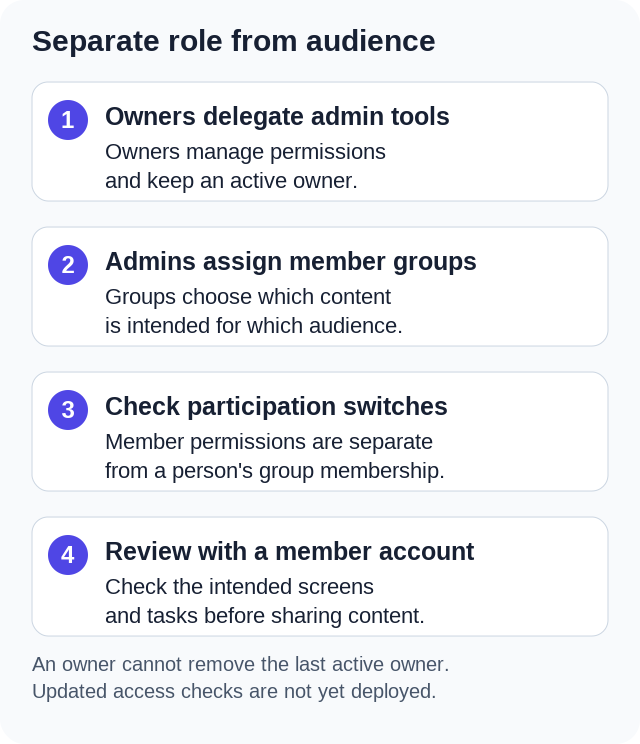
Groups are audiences, not extra account roles. A person may be in several groups. For a document targeted to several groups, membership in any selected group qualifies; the person still needs View Documents permission.
Family and full-member audiences can use your existing groups. Use Member Permissions to turn off election and poll viewing and participation for family accounts. Group assignment alone does not do that.
Release preview: After the updated release deploys, direct access, unread counters, related announcements, and delivery paths consistently apply the corresponding member permissions. No group schema or group creation change is required.
For elections, adding a member to a group gives them a ballot in that group's draft, scheduled and open elections, the same as a new member who accepts an invitation into the group. Removing a member from a group never takes a ballot away, even mid-election. Weighted elections are the exception: their roster is reviewed account by account.
Group analytics#
The Group Analytics screen shows two breakdowns:
- "Poll Participation by Group" shows the participation rate and vote choices per group, for non-anonymous quick polls whose results you are allowed to view. An anonymous poll shows "This poll is anonymous, so a group breakdown is not available."
- "Election Eligibility by Group" shows how many eligible voters each group contains, as counts only. It does not provide individual choices or a vote-choice breakdown by group.
Note: The Group Analytics screen is the ordinary admin interface. The screen does not establish absolute unlinkability against the service operator; see How anonymous voting works. See roles and permissions for who can view poll results at all.
Read about audience and permission decisions#
A content audience and an account permission are different decisions. NIST's role-based access-control reference and OWASP's authorization guide provide background on access control. They do not define One Group Central's group picker, eligibility snapshot or preview behavior; use the specific rules on this page for those tasks.
References checked October 12, 2026. This date records the source-link check, not a human or specialist review of this article.
FAQ#
How do I target an announcement at just the board?#
Create a Board group, assign the board members to it, then pick Board in the group targeting picker when composing the broadcast.
Can members see which groups they are in?#
Group chips can appear in the member directory when the "Show groups in member directory" feature switch is on in Settings > Features.
Why is the group breakdown missing on my poll?#
The poll may be anonymous, or you may not have results access. Group breakdowns exist only for named quick polls. Multi-question surveys have their own question summaries and response filters in Polls.
What happens to targeted content if I delete a group?#
The group's members are unassigned, so content targeted only at that group loses that audience. Reassign members or retarget the content first.
Published: . Last updated: .