Sensitive document vault for ID photos
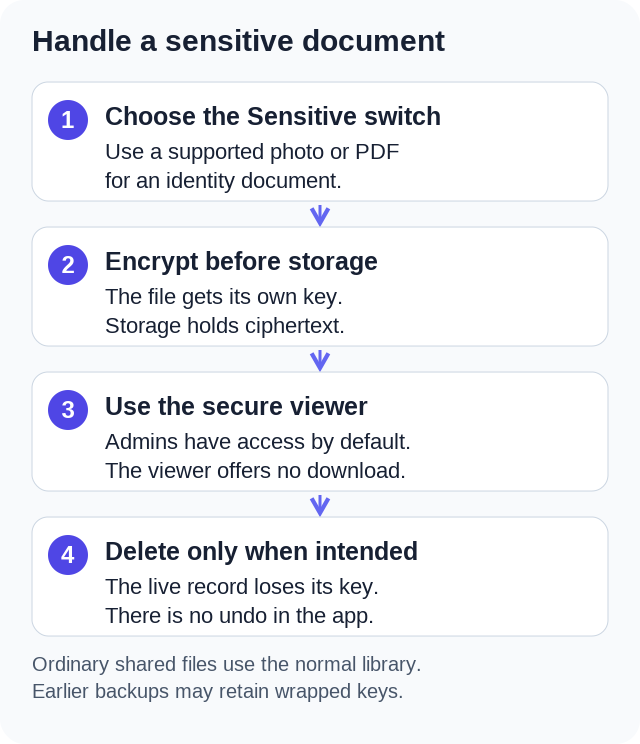
The One Group Central sensitive document vault stores photos of Social Security cards, passports, driver's licenses, and similar identity documents. Admins turn on the "Sensitive (encrypted)" switch in the upload dialog on the Documents screen. The vault encrypts these files at rest, restricts them to admins by default, and serves them only through a secure in-app viewer.
Identity documents such as Social Security cards, passports and driver's licenses are too sensitive for the ordinary document library. Use the vault whenever a leaked file would expose someone's identity.
Requirements#
You need the Documents feature enabled and the Upload admin permission. The vault is part of the normal upload dialog on the admin Documents screen; see publishing documents for the ordinary path. For the underlying encryption design, see document encryption.
What the Sensitive toggle does#
In the upload dialog, turn on the "Sensitive (encrypted)" switch. The text under it reads: "Encrypt at rest for ID photos (SSN, passport, license). Photo or PDF only; admins-only access." With the switch on:
- The sensitive file is encrypted before it is stored, with its own unique encryption key.
- Access defaults to admins only. Members do not see the sensitive file in their library.
- The "Send announcement to members" switch disappears (announcing a sensitive file to everyone would defeat the point).
Allowed file types#
Encrypted uploads accept photo formats and PDF only:
- JPEG, PNG, WebP, HEIC
Other file types are rejected by the vault. If you need to protect a different format, convert it to PDF first.
The secure viewer#
Encrypted documents open through the authenticated service instead of a shareable download link. The viewer:
- Receives decrypted bytes after the service checks current access
- Uses memory-based PDF and image viewers
- Offers no download or export action
These controls do not guarantee that a browser or operating system retains no data, and they cannot prevent someone from capturing what is displayed. Removing access blocks later requests; it cannot recall bytes already delivered to an open viewer.
The service attempts to record each view in the audit log. A logging failure does not block the file response, so do not treat the log as a complete record of every displayed copy.
Deleting an encrypted document#
Warning: Deleting an encrypted document removes its wrapped key from the live database, makes the document inactive and requests removal of the stored file. The app has no undo or trash. Be certain before you delete.
Vault deletion prevents the normal application from recovering that file. An older database backup can still contain the wrapped key until the backup expires. Set your organization's retention process with that limit in mind; deleting an item is not a claim that every historical copy has already expired. See document encryption.
When to use the vault, and when not to#
Use the vault for:
- Photos or scans of government IDs: SSN cards, passports, driver's licenses
- Any file where exposure would enable identity theft
A normal upload is fine for:
- Bylaws, minutes, newsletters, budgets, contracts, and other organizational documents
- Anything members are meant to read
Normal uploads get group targeting, announcements, and member access. Vault uploads keep their category but give up the rest in exchange for encryption and restricted viewing. Choose based on the harm a leak would cause.
How should I handle a policy PDF and an ID scan?#
Upload the policy as an ordinary document when members need to read it. Upload the ID scan separately with "Sensitive (encrypted)" enabled. A file's PDF format does not tell the portal which audience you intend; the Sensitive switch changes its storage and viewing path.
Before saving the ID scan, check that it is a supported photo or PDF and that no member announcement is being composed. After upload, use the secure viewer to confirm that the file is legible. Keep retention decisions separate from routine document tidying: deleting a vault item removes its live key, with no recovery action in the app. The ordinary library is not a recovery copy of that sensitive file.
Read the encryption and key-management references#
NIST SP 800-38D specifies GCM authenticated encryption, and OWASP's cryptographic storage guide covers key handling. These give technical context for the vault; they do not certify this implementation or establish that an organization's retention policy is satisfied. Review the live-system and backup deletion limits above.
References checked October 12, 2026. This date records the source-link check, not a human or specialist review of this article.
FAQ#
Can members ever see an encrypted document?#
By default, no; encrypted document access is admins only. The vault exists precisely to keep identity documents away from the general library.
Why can't I download an encrypted document?#
The secure viewer uses memory-based renderers and offers no download or export action. These app controls do not establish that a browser or operating system retains no data, or prevent someone from capturing what they can see.
What happens if I delete an encrypted document by accident?#
The app cannot restore a deleted vault document. Deleting removes its live wrapped key and makes it inactive, with no undo. Removal of the stored ciphertext is attempted after that change; a cleanup failure does not restore the live key. Earlier backups retain their historical wrapped keys until they expire, but the portal offers no recovery action. Double-check before confirming a vault deletion.
Can I upload a Word file to the vault?#
No. The vault accepts JPEG, PNG, WebP, HEIC, and PDF only. Export the file to PDF first.
Published: . Last updated: .