Admin Guide
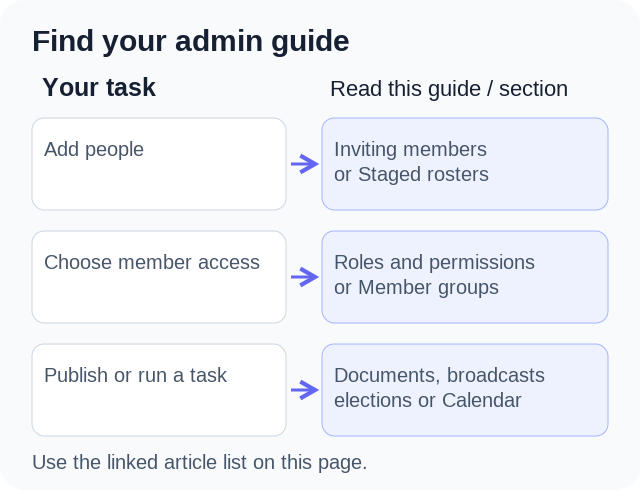
Admins run a One Group Central portal from the Admin Panel: they invite members and set permissions, publish documents and announcements, run elections and polls, and manage groups, chat channels and the calendar. Owners decide which admin can do each task. The guides below give the exact steps and the limits for each one.
How do I manage members and portal content?
- Admin Panel overview and dashboard tourFind the Admin Panel, learn what every drawer item does, understand the dashboard cards, and see why some items may be hidden from your view.
The Admin Panel is where owners and admins run the organization: members, invites, content, settings, and billing all live here. It sits alongside the regular member experience, so you can switch back and forth at any time. Read this first, then go to the article for the task you have.
- Inviting Members One at a TimeSend a single invite, choose a role, add groups, copy the one time link, and manage pending, accepted, revoked, and expired invites.
Admins with the "Invite Members" permission invite one person from "Invites" in the Admin Panel: press "Invite member", enter the "Email", choose a "Role" of Member or Admin, optionally add groups, and confirm. Creating the invitation produces a one-time link that expires in 7 days. Whether an email is sent also depends on notification settings and sending limits. One Group Central portals are invite-only.
- Bulk inviting members with a CSV fileUpload a CSV of names, titles, emails, and roles, review each row in the staging table, assign a required group, and send invites in one batch.
Admins bulk invite members by opening "Invites" in the Admin Panel and pressing "Upload CSV". Choose a file with name, title, email and role columns, review every row in the staging table, set the required group on each row, and press "Invite selected (N)". The CSV upload sends nothing before that final step.
- Roles and permissions for ownersUnderstand member, admin, and owner roles, promote or demote members, add or change owners, fine tune permissions, and suspend accounts.
One Group Central has three roles: member, admin, and owner. Owners hold full control, including billing and the Admin Permissions screen, and delegate pieces of it to admins through granular permission switches. Members use the portal with no admin access, and get their own set of participation switches.
- Member groups: create, assign, and targetCreate groups, assign members, target documents, announcements, events, polls, and elections at specific groups, and read group analytics.
Groups split your membership into audiences such as a board, committees, staff, or regions. Once groups exist, most kinds of content can be aimed at specific groups instead of everyone, and analytics can break participation down by group. Admins assign groups. Members cannot join or leave groups themselves.
- Publishing documents to your membersUpload documents, organize with categories, target groups, announce new files, assign managers, verify integrity, and understand OCR and delete.
Admins with the Upload permission publish a document from "Documents" in the Admin Panel: start an upload, pick the file, enter a "Title", optionally add a category, description and group targeting, and confirm. The file then appears in the One Group Central document library, where members find bylaws, minutes, contracts and newsletters.
- Sensitive document vault for ID photosEncrypt ID photos and other sensitive files at rest with the Sensitive toggle; open them in the app's secure viewer, with admin access by default.
The One Group Central sensitive document vault stores photos of Social Security cards, passports, driver's licenses, and similar identity documents. Admins turn on the "Sensitive (encrypted)" switch in the upload dialog on the Documents screen. The vault encrypts these files at rest, restricts them to admins by default, and serves them only through a secure in-app viewer.
- Sending Announcements and BroadcastsCompose and send announcements to members by email, push and text. Format with markdown, attach files, target groups, and schedule sends for later.
Admins send a One Group Central announcement from "Broadcasts" in the admin area: press "New Broadcast", enter a "Subject", write the message, pick groups or leave all members, and press "Send". One broadcast goes out by email and push notification at the same time, by text if texting is on, and appears on the member News screen.
- Running an election from draft to resultsCreate, open, close, reopen and tally an anonymous election, or copy one to run again. Covers ballot options, scheduling, eligibility and results.
Admins run a One Group Central election from "Elections" in the admin area: press "New Election", enter a title, a description and at least 2 choices, choose "When to start", optionally set when "Voting closes", and press create. When voting should end, press "Close & Tally" to stop voting, decrypt the ballots and publish the results as totals.
- Creating polls and surveysRelease preview guide to creating polls and surveys, choosing participant and results groups, assigning owners, and exporting submitted answers.
Admins with "Create Polls" and organization owners create a quick poll or survey from "Polls" in the admin area: press "New Poll", choose "Quick poll" or "Survey", add questions or answer options, set both audiences, and create it. Multi-question surveys and the new ownership and audience controls are a release preview, not yet deployed.
- Managing the Calendar and EventsCreate, edit, and delete events, view RSVPs, import .ics files, and subscribe to external calendars that sync automatically into your portal.
The admin Calendar is where you manage everything your members see on their Events screen (the home tile labeled "Events" opens the Calendar). You can create events by hand, import an .ics file, subscribe to an external calendar that syncs on its own, or scan a printed schedule with your phone.
- How do I import my Google Calendar?
- What happens to RSVPs when I delete an event?
- Can I re-import an updated .ics file without creating duplicates?
- Can I skip one week of a repeating meeting?
- Why did my repeating meeting move by an hour?
- How do I extend a repeat that has no end date?
- Why did my edit to a synced event disappear?
- Scan a printed schedule into the calendarPhotograph a printed or handwritten schedule and turn it into calendar events. Review detected events, fix details, and add them in one tap.
Scan a schedule turns a photo of a printed or handwritten schedule, such as a flyer from the bulletin board, into calendar events. You photograph it, the app reads the text, and you review each detected event before anything is added, so you do not have to retype a page of dates.
- Managing chat channels and moderationCreate and organize chat channels, restrict channels to groups, archive or delete, moderate messages, and manage the automatic General channel.
The Chat admin screen is where you create and organize your organization's chat channels. Some channels you create yourself; others appear automatically: every member group gets its own channel, and the org-wide General channel exists for everyone. Moderating what members post happens in the member chat screen, covered below.
- Using the audit logReview admin and member actions in the audit log. Search, filter by area, inspect entry details, and export the full log to CSV for records.
The audit log is your organization's activity record: who did what, when, and from where. Invites, document uploads, broadcasts, election actions, settings changes, and more land here automatically. Use it to answer "who changed this?" questions, investigate problems, and keep records for your board or auditors.
- Staged rosters, upload people without inviting themUpload a roster without emailing anyone, choose which groups or individuals can review the list, then send the invitations once it is right.
A staged roster in One Group Central is a list of people uploaded as a CSV under "Staged rosters" in the Admin Panel, and nobody on it has been contacted. No email goes out, no invitation link exists, and none of them count against your plan's member limit until you press send.
- Preserve election records and grant observer accessHow election record preservation works, how owners extend it and grant observer access, and what the redacted JSON audit report does and does not prove.
Every election is protected from deletion from the moment voting opens until at least a year after it closes. Owners and approved observers can review an election's settings, aggregate counts, integrity status and recorded activity. Owners can extend preservation and grant access to individual observers. These application safeguards and the server-generated report do not establish an independent recount or certification.
- Manage event galleries and photo accessHow admins run event albums: separate viewing and editing access, drafts, photo uploads, captions, covers, publication, and storage.
In the Event gallery, owners and admins with Manage Event Gallery can create albums, choose viewers and editors separately, upload photos, and publish the album when ready. Assigned member editors can prepare content without becoming admins. Album access does not inherit the linked event's audience.
- Manage dues and event collectionsRelease preview guide to recipient setup, approving event collectors, assigning dues, checking collections, and stopping new payments.
Member payments are a development preview and are not deployed. After release validation and provider setup, owners and admins with Manage Payments can manage organization charges and approve member event collectors. Live collection remains disabled until those requirements clear; use your current dues and event-payment service meanwhile.
Published: . Last updated: .