Managing the Calendar and Events
The admin Calendar is where you manage everything your members see on their Events screen (the home tile labeled "Events" opens the Calendar). You can create events by hand, import an .ics file, subscribe to an external calendar that syncs on its own, or scan a printed schedule with your phone.
Release preview, not yet deployed: The updated release consistently applies View Calendar to subscribed feeds and View Calendar plus RSVP to Events to participation. Group audiences and member module permissions remain separate controls.
Requirements#
You need the Calendar feature turned on and the Manage Calendar permission. If the Calendar drawer item is missing, the feature is off in Settings > Features. If you can open Calendar but cannot add or change events, ask an owner to turn on "Manage Calendar" for you on the Permissions screen.
Create an event#
- Open the admin area and choose "Calendar" from the drawer.
- Press the new event button to open the event sheet.
- Enter a "Title", and optionally a "Description" and "Location".
- Turn on "All day" for date-only events, or set "Starts" and optionally "Ends".
- Set "Repeat" if the event happens more than once. See Repeating events below.
- Pick an "Alert" if you want members reminded before the event: at time of event, 5 minutes to 2 hours before, or 1 day, 2 days, or 1 week before. Leave it on "None" for no reminder.
- Use the group targeting picker to show the event only to specific groups, or leave it visible to all members.
- Save.
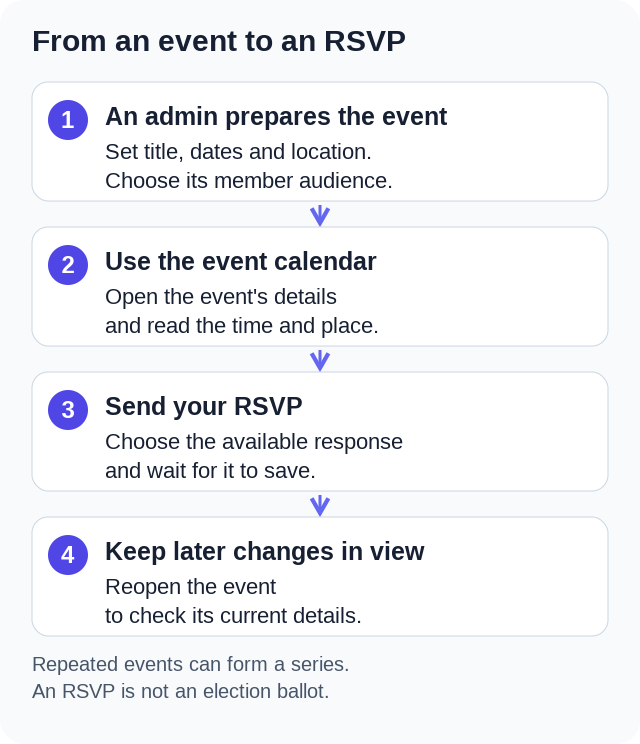
Members see the new event on their calendar and can RSVP Going, Maybe, or No.
Repeating events#
Set "Repeat" in the event sheet to create a weekly meeting, a monthly board meeting, or an annual general meeting in one go.
Choose how often the event repeats:
| Repeat | What you can set |
|---|---|
| Daily | Every day, or every N days |
| Weekly | Which weekdays, and every N weeks (so "every other Wednesday" works) |
| Monthly | A date ("day 16"), or a weekday position ("the third Tuesday") |
| Yearly | The same date each year |
Then choose when the repeat stops: "Never", "On date", or "After" a number of times.
Set your time zone first#
Before you create your first repeating event, set "Calendar time zone" in Settings under Identity.
Repeats are worked out in the calendar time zone, which is what keeps a 7:30 PM meeting at 7:30 PM when the clocks change. An organization that has never set one is treated as UTC, and a weekly evening meeting then moves by an hour for half the year. The repeat picker warns you about this while you are still choosing.
Change or cancel one occurrence#
Open the occurrence you want and edit or delete it as usual. Because it belongs to a repeat, the app asks first:
- "This event" changes or removes only the occurrence you opened.
- "All events" applies to the occurrence you opened and every later one, and leaves occurrences that already happened alone.
So cancelling the meeting that falls on a holiday is "This event", and moving the meeting to a new hall from now on is "All events".
Change how often it repeats#
Open any occurrence, change the "Repeat", and choose "All events". The later dates are rebuilt from the new rule, so RSVPs on those dates are cleared. Earlier occurrences, and the one you opened, keep their responses.
How far ahead they are created#
A repeat that ends on a date or after a number of times is created in full, up to 400 occurrences.
A repeat set to "Never" end is created two years ahead. It is not infinite, and the picker says so. When you get near the end, open any occurrence and extend the repeat.
Event alerts#
When you set an Alert on an event, every member who can see it is notified at that time: their app shows the red unread badge on the Events tile again (even if they already opened the event) and their devices get a push notification naming the event. For a group targeted event, members of the targeted groups and the organization's owners and admins are reminded. Reminders are not sent while Calendar is turned off for your organization.
Each alert fires once. If you change the event's start time or its Alert, the reminder re-arms and fires again at the new time.
Members can turn event reminders off for themselves with the "Event reminders" switch on their Profile screen. Members who opted out get no badge and no push from alerts.
An alert that comes due more than an hour after the event already started is dropped rather than delivered late.
Edit or delete an event#
Open an event to edit any of the event's fields, or delete the event. If the event is part of a repeat, the app asks whether you mean this occurrence or all of them first; see Change or cancel one occurrence.
Warning: Deleting an event removes all of its RSVPs along with it. If members have already responded, consider editing the event instead of deleting and recreating it.
Event photo albums#
An Event gallery album can link to a calendar event, with its own viewing groups and editing team. Linking an event does not copy the event's audience, so check both before sharing photos. Deleting a calendar event removes the link but keeps the album and its photos. See managing event galleries.
See who is coming#
Open an event's attendees sheet to see a read-only list of responses grouped into Going, Maybe, and No, with each member's name and email.
Import an .ics file#
- On the Calendar screen, choose the import action and pick your .ics file.
- Confirm the import, choosing group targeting for the incoming events if needed.
- The app reports "Imported N events".
Importing the same file again after the source changed updates the existing events rather than duplicating them.
A recurring event in the file becomes a repeat in your calendar, not a single event. Dates the publisher had already cancelled stay cancelled, and an occurrence they had moved stays moved.
A few repeat rules are more elaborate than the repeat picker can describe. Rather than refuse the whole file, the import brings that entry in as a single event, which you can then set a repeat on yourself.
Sync an external calendar#
Sync sources keep your portal calendar mirrored from a public iCal feed (Google Calendar, Outlook, a league schedule site).
- Open the sync sources sheet on the Calendar screen.
- Add a source with a "Name" and its iCal URL, plus optional group targeting.
- The calendar source syncs periodically on its own. Press "Sync now" on a source to pull immediately.
Remove a sync source#
- Open the sync sources sheet and press Remove on the source.
- Leave Also remove the events this source imported unticked to keep the imported events on the calendar. Tick the checkbox to delete the imported events along with the source.
- Press Remove to confirm, or Cancel to change nothing.
Events you keep after removing a sync source become ordinary events. Kept events stay where they are and never sync again. Events you remove take their RSVPs with them.
Note: Events that came from an import or a sync source can be edited, but the next sync from the same source may overwrite your manual changes. Make lasting edits in the source calendar instead.
Common mistakes#
- Deleting an event to "reschedule" it. Deleting the event wipes the RSVPs. Edit the start time instead.
- Creating a repeat before setting your calendar time zone. The meetings drift by an hour when the clocks change.
- Deleting a whole repeat to skip one week. Delete the single occurrence and choose "This event".
- Ticking "Also remove the events this source imported" when members have already responded. The RSVPs go with the events. Leave the checkbox unticked if you only want the syncing to stop.
Calendar files and receiving apps have separate rules#
RFC 5545 defines iCalendar event and recurrence data. Microsoft's import and subscription instructions explain the distinction in Outlook. Follow the portal's own import and sync limits here; a standard or receiving-app guide does not mean every recurrence format is supported by this importer.
References checked October 12, 2026. This date records the source-link check, not a human or specialist review of this article.
FAQ#
How do I import my Google Calendar?#
Either export your Google Calendar as an .ics file and use the import action, or get the Google Calendar's public iCal URL and add it as a sync source so the calendar stays up to date automatically.
What happens to RSVPs when I delete an event?#
RSVP records are deleted with the event and cannot be recovered. Check the attendees sheet first if you need the list.
Can I re-import an updated .ics file without creating duplicates?#
Yes. Re-imports match events from the same source and update them in place instead of duplicating them.
Can I skip one week of a repeating meeting?#
Yes. Open that week's occurrence, delete it, and choose "This event". The rest of the repeat is untouched.
Why did my repeating meeting move by an hour?#
Your organization's calendar time zone is probably still unset, so the repeat was worked out in UTC. Set the time zone in Settings under Identity, then open any occurrence, change the repeat, and choose "All events" to rebuild the later dates.
How do I extend a repeat that has no end date?#
Open any occurrence, open "Repeat", and set an end date further out or leave it on Never. Choosing "All events" rebuilds from there.
Why did my edit to a synced event disappear?#
The next periodic sync from the source calendar overwrote your edit. Edit the event in the source calendar, or move the event off the sync source by recreating it manually.
Published: . Last updated: .