Your profile, photo, and security settings
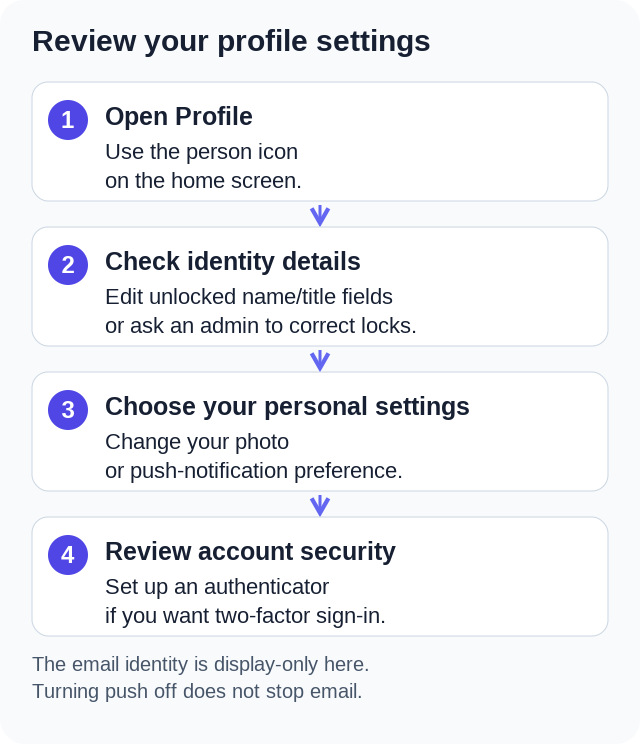
The One Group Central profile screen opens from the person icon in the top right of the home screen app bar. There you edit your name, title and phone, tap your avatar to change your photo, use the "Push notifications" toggle, and open the two-factor authentication dialog to turn 2FA on or off.
Open your profile#
Tap the person icon in the top right of the home screen app bar. Your profile screen shows your photo, your role badge, and your details.
Edit your details#
You can edit these fields directly on the profile screen:
- "Name"
- "Title" (your job title or role description)
- "About" (up to 2000 characters)
- "Phone"
- "Hire Date" (opens a date picker)
Your email address is display-only on the Profile screen, because it is the address you sign in with. To change it, see Can I change my email address? below.
Enter your phone as a mobile number with its area code, for example 631 555 0100. A number outside the US and Canada starts with + and the country code. The app saves it in international form, so 631 555 0100 shows as +16315550100 once saved. If what you typed cannot be read as a mobile number (it has no area code, has letters, or has an extension), the app tells you what to enter and keeps the number you had before.
Change your photo#
- Tap your avatar at the top of the profile screen.
- Pick a new photo.
- The photo uploads and appears across the app, including the member directory.
Locked fields#
If your name or title shows a lock icon and the label "Set by your organization", an admin set that value for you and you cannot edit it. Contact an admin if it needs correcting.
Push notifications#
The "Push notifications" toggle reads "Receive a push when an admin sends a broadcast." Turning it off stops push alerts on your devices only; emails your organization sends still arrive normally. See Notifications for the full picture of badges and alerts.
Event reminders#
The "Event reminders" toggle sits just below Push notifications. When an event's creator set an alert on it (for example, 1 day before), the reminder normally brings back the red badge on the Events tile and sends a push to your devices at that time. Turn this toggle off and event alerts skip you entirely; new events still show the ordinary unread badge.
Appearance: light or dark#
Tap "Appearance" and pick "Match this device", "Light" or "Dark". The choice applies on this device only, at once, and is remembered the next time you open the app. Until you pick one, the portal uses your organization's setting: dark if your admins turned on dark mode, otherwise your device's own light or dark setting.
Payment history#
Member payments are a release preview, not yet deployed. In the preview, open "Payment history" from your Profile to review payment attempts and their current status. The Payment history entry remains available when your organization turns Payments off, so you can still read your history. See payments for payment steps, receipts and refund statuses.
Change your password#
- On your profile screen, tap "Change password" ("Choose a new password for signing in.").
- Enter your current password in "Current password".
- Enter the new password in "New password" and again in "Confirm new password". It needs at least 12 characters.
- Press "Save new password".
You see "Your password was changed." This device stays signed in. Every other device you were signed in on has to sign in again with the new password. If you have forgotten your current password, sign out and use "Forgot password?" on the sign-in screen. If support set a temporary password for you, the app asks you to choose your own the first time you sign in with it.
Turn on two-factor authentication#
Two-factor authentication (2FA) adds a 6-digit code from an authenticator app to your sign-in, so a stolen password alone cannot open your account.
- Install an authenticator app if you do not have one, such as Google Authenticator, Authy, or 1Password.
- On your profile screen, open the two-factor authentication dialog and press "Start".
- The app shows a copyable secret key with the instruction "Add this key to your authenticator app". Copy the key.
- In your authenticator app, add a new account and paste the key. The member app shows the key as text, so use your authenticator's manual or setup-key entry option rather than a QR scan.
- Your authenticator now shows a 6-digit code that changes every 30 seconds. Enter the current code in the dialog and press "Enable".
From now on, signing in asks for your password and a current code. See Two-Factor Authentication for background and recovery guidance.
Warning: Keep the authenticator entry safe. If you lose the device with your authenticator app, you cannot sign in on your own. Email info@onegroupcentral.com for help getting back into your account.
Turn off two-factor authentication#
Open the same dialog and choose to turn it off. You must enter a current 6-digit code from your authenticator app to confirm; this stops anyone who does not control your authenticator from weakening your account.
Anonymous Voting ID#
The "Anonymous Voting ID" tile lets you enroll this device for a newer anonymous voting method that remains gated off pending independent security review and deployment prerequisites. If the tile is not available in your build, you vote the normal way.
Sign out#
Tap "Sign Out" at the bottom of the profile screen. Signing out unregisters this device from push notifications and returns you to the login screen. To get back in, see Sign In.
RFC 6238 describes time-based one-time passwords, the kind of code an authenticator app shows, and recommends a default time step of 30 seconds. 1Password's guide covers adding a one-time password to a login by choosing the option to enter the code manually and pasting it into 1Password, the same route you take with the text key from step 4. Those references explain authenticator apps, not account recovery; if you lose your authenticator, follow the warning above.
FAQ#
Why can't I edit my name?#
A lock icon with "Set by your organization" means an admin set your name (or title) and locked it. Ask an admin to change it for you.
What happens if I turn off push notifications?#
You stop receiving push alerts on your devices. Email from your organization is unaffected and still delivered.
How do I set up two-factor authentication without a QR code?#
The app shows your secret as a text key instead of a QR code. In Google Authenticator, Authy, or 1Password, choose the option to enter a setup key manually and paste the key in.
Can I change my email address?#
Not yourself. Your email is the address you sign in with, so the profile screen shows it but cannot edit it, and your organization's admins cannot change it either. Write to One Group Central support at info@onegroupcentral.com with the address you use now and the one you want. Support confirms who you are before making the change.
Once it is changed:
- You sign in with the new address and the same password. The old address no longer signs you in.
- You are signed out on every device, so sign in again.
- Two-factor authentication stays on if you had it on.
- The old address gets an email saying the change happened. The new address gets an email with a sign-in link and a link to confirm the address.
- A password reset link sent to the old address before the change stops working.
Published: . Last updated: .