Install the app on your device
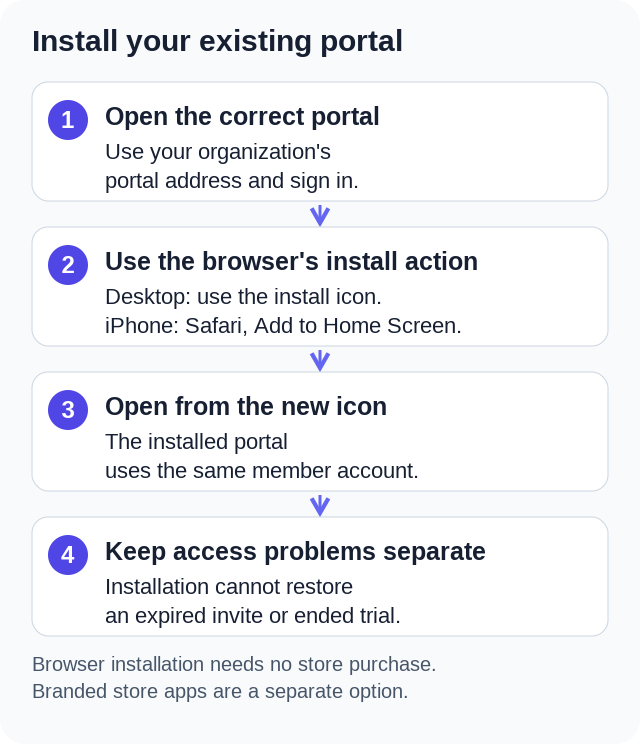
Install One Group Central straight from your browser, with no store account. In desktop Chrome or Edge, click the install icon at the right end of the address bar. On iPhone or iPad, tap "Share" in Safari, then "Add to Home Screen". The installed portal gets its own icon and its own window.
One Group Central works in any modern browser, and installing it puts your portal one tap away. If your organization offers its own branded app in the stores, that works too, and you sign in with the same email and password either way.
Install from your browser (PWA)#
The web app is an installable PWA named "One Group Central"; the label under its icon reads "OGC Portal".
Desktop Chrome or Edge#
- Open your portal at
app.onegroupcentral.com/<your-slug>and sign in. - Look at the right end of the address bar for the install icon.
- Click the install icon and confirm the install.
- The installed One Group Central portal opens in its own window and appears with your other apps.
iPhone and iPad (Safari)#
- Open your portal in Safari and sign in.
- Tap the "Share" button (the square with an upward arrow).
- Scroll down and tap "Add to Home Screen".
- If you see "Open as Web App", turn it on, then tap "Add". The portal icon appears on your home screen.
Tip: Chrome on iPhone and iPad also offers Share, then Add to Home Screen. Google's Chrome instructions explain when the shortcut opens as a web app.
If your browser menus look different, use the current Apple Safari instructions or Microsoft Edge instructions. Browser support for notifications does not mean One Group Central sends web push; its current push alerts require a branded mobile app. References checked October 11, 2026.
How the installed web app behaves#
The installed web app is the same portal as the browser tab, in its own window. A few behaviors follow from that.
- The installed web app needs an internet connection. The portal does not keep an offline copy, so with no connection it cannot load.
- Updates arrive on their own. The portal registers no service worker, so the next time you open the app after an update, you get the new version without reinstalling.
- The PDF viewer in the web version loads its PDF rendering library from the internet, so documents need a connection to open.
- The installed web app opens at the root address. If you have used the portal on that device before, it remembers your organization and takes you to your sign-in page; if not, type your slug on the landing screen.
- Push notifications and the app icon badge come from the branded mobile apps only.
Branded apps from the stores#
Some organizations offer their own branded version of One Group Central in the app stores, published under the organization's own name and logo. If your organization offers a branded app, your administrator will share the store link. Install the branded app as you would any app, open the app, and sign in with your usual email and password.
A branded app is built for one organization, so it opens straight on that organization's sign-in page and never asks for a slug. Branded mobile apps are published in the App Store and Google Play; branded desktop apps are published in the Mac App Store, Microsoft Store, and Snap.
For owners deciding whether to offer one: the Enterprise plan includes every branded app. On the other plans, branded apps are an add-on: mobile apps cost $499 to set up, then $39 a month; desktop apps cost $699 to set up, then $59 a month; and all platforms together cost $999 to set up, then $79 a month. Email info@onegroupcentral.com to arrange one.
App icon badges#
On the branded mobile apps from the app stores, the app icon shows a badge with your total unread count (announcements, documents, elections, polls, links, and events). iOS shows a number; on Android it depends on your launcher (Samsung shows counts, stock Pixel shows a dot). The badge clears when you sign out. Badges do not appear on the web version, including a web app installed from the browser.
Note: To also get push notifications when your organization sends an announcement, keep the push toggle on in your profile. See notifications.
Does installing create a new account or organization?#
No. Installation adds a shortcut to the portal you already use. You still need an invitation or an existing account, and you sign in with the same email and password as in the browser. Installing on a second device does not use a second member seat for that same account.
Before installing, check the organization's portal address. A branded store app and the browser version can use the same account, but a similarly named organization is not automatically your portal. If you cannot sign in, follow the sign-in guide; repeatedly installing the app will not fix an expired invitation, suspended account or ended trial.
FAQ#
Do I have to install anything to use One Group Central?#
No. The browser version at your portal address is fully functional. Installing just adds convenience: an icon and its own window.
Can I be signed in on more than one device?#
Yes. Install on your phone and your computer and sign in on both. Each device stays signed in for up to 30 days of activity.
Why is there no install icon in my address bar?#
The install icon appears in Chrome and Edge on desktop. If it is missing, you may already have the app installed, or you are using a browser that does not support install; on iPhone use Safari's Share, then Add to Home Screen instead.
Why does my Android phone not show a number on the app icon?#
Android launchers vary. Samsung devices show unread counts; stock Pixel launchers show only a dot. The badge style is a device behavior, not a setting in the app.
How do I remove the installed app?#
Remove the installed app the way you remove any app on that device. Removing the app does not touch your account: your documents, votes, and messages stay in the portal, and you can keep using it in the browser.
Why does a document not open in the installed web app?#
The web version needs an internet connection to load its PDF viewer. Check your connection and open the document again.
Published: . Last updated: .