Branding and theme: logo, colors, and fonts
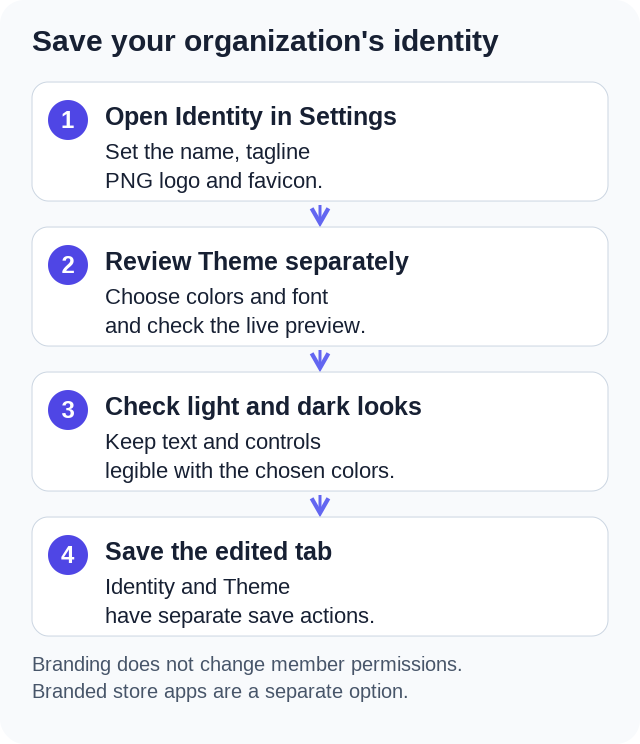
Set One Group Central branding in "Admin Panel" under "Settings": the "Identity" tab holds your organization's name, tagline, logo, and favicon, and the "Theme" tab holds your colors, font, and dark mode default. Logos must be PNG files. Your portal uses this look on the sign-in screen, the app bar, buttons, and links.
Requirements#
You need an owner or admin account with the Edit Branding permission. Open "Admin Panel" from the home grid, choose "Settings" in the drawer, and use the "Identity" and "Theme" tabs. For a tour of all eight tabs, see /help/settings/organization-settings.
Identity tab: name, tagline, logo, favicon#
- Open "Settings" and select the "Identity" tab.
- Enter your organization's name. This appears on the sign-in screen and in the app bar.
- Enter a tagline (optional): a short line shown under the name.
- Upload your logo. Use a PNG file, 400x100 pixels recommended. The picker uploads the file and shows the current logo once it is set.
- Upload your favicon. Use a 32x32 PNG. This is the small icon shown in browser tabs.
- Save the tab.
Warning: Logos must be PNG files. SVG files will not render in the app, so export your logo as a PNG before uploading.
Theme tab: colors, font, dark mode#
- Select the "Theme" tab.
- Set your three colors: Primary, Secondary, and Accent. Each has a color picker, and you can also type an exact hex value (for example #1A73E8) to match your brand guide.
- Choose a "Font": Inter, Roboto, Poppins, or Lato.
- Turn "Default to dark mode" on if you want members to start in the dark theme. When it is off, the portal follows each member's device. Either way, a member can pick "Light", "Dark" or "Match this device" under "Appearance" in their profile, and that choice wins on their device.
- Watch the live preview as you adjust. It updates immediately so you can judge contrast and readability before saving.
- Save the tab.
Tip: Check the live preview in both light and dark looks. A primary color that reads well on white can lose contrast on a dark background.
Logo and favicon upload details#
The upload button reads "Upload Logo" before a logo exists and "Replace Logo" after; the favicon field works the same way. The file picker lists PNG files only. A logo or favicon saves as soon as its upload finishes: the app shows "Logo updated." or "Favicon updated." and you do not need to press "Save Identity" for it. Each new upload replaces the previous file.
Members see your logo on the sign-in screen and at the top of their Home screen, next to your organization's name. On the Home screen it sits on a small white tile, so a dark seal still shows on a dark bar. A wide logo is shown smaller there, so a square seal or emblem reads best.
If your logo is already on your website, choose "Or add from a link", paste the address into "Image URL (PNG)", and press "Fetch". Your device downloads the image and uploads it the same way as a picked file. The link path checks the file itself, so it refuses a JPEG that was renamed to .png. The messages you can see are:
- "Enter a link starting with http or https." when the address has another scheme.
- "That link is not a PNG. Save it as a PNG and upload it, or use a different link." when the file is not a PNG.
- "That image is over the 10 MB limit." when the file is too large.
- "Could not load that link. Check the address is public." when the address cannot be reached, often because it sits behind a sign-in.
Uploading a logo needs the Edit Branding permission. Without it, the upload stops with "Upload failed:" and an error.
Color and font rules#
Each color swatch opens a picker titled "Pick Primary Colour" (or Secondary, or Accent). Its "Hex colour" field takes six hex digits, with or without the leading #, and shows "Enter a valid 6-digit hex" until you have typed all six. In web browsers that support it, such as Chrome and Edge, a dropper button labelled "Pick colour from screen" samples any color on your screen; the mobile and desktop apps do not show it. Press "Select" to keep the color.
The server accepts only #RRGGBB or #RGB colors and only the four fonts Inter, Roboto, Poppins, and Lato. "Save Theme" sends all three colors, the font, and the dark mode switch together, so the Theme tab always saves as one set. The Accent color is "Used for secondary actions and badges".
A worked example#
Suppose your union's brand guide gives navy #1F3A5F and gold #C9A227. Set Primary to #1F3A5F, set Accent to #C9A227, and pick a darker Secondary such as #2E4A70. Choose "Inter" as the font, leave "Default to dark mode" off, and check that the "Primary", "Secondary", and "Accent" buttons in the preview have readable text. Press "Save Theme". Your own app redraws at once; members see the new colors the next time they open the app or reload the page.
Common mistakes#
- Typing a hex value with only five characters, or a shorthand like #FFF. The picker wants all six digits, as in #RRGGBB.
- Uploading a tall or square logo. The header is wide and short, so a wide 400x100 PNG fits best.
- Forgetting to save the tab before switching to another one. Each tab saves separately.
How do I change a logo without changing feature access?#
Use the Identity tab for the logo and the Theme tab for colors and typography. Those changes require Edit Branding. Do not turn switches off on Features to make the interface look simpler: a disabled feature also stops that feature's server actions for members.
Save each branding tab you edit. Check that the name and logo remain readable and that the live Theme preview shows legible buttons and links. For a logo, prepare the recommended PNG dimensions before uploading rather than relying on an unsupported SVG. If the goal is to limit a committee's content access, change its audience or permissions instead of using colors or branding as an access control.
WCAG 2.2 success criterion 1.4.3 sets a contrast ratio of at least 4.5:1 for text, or 3:1 for large text, a useful target when you judge the live preview. For a member's own device setting, Google's Android guide shows how to turn Dark theme on or off under Settings, then Display. That guideline explains a contrast target, not whether a particular color set meets your organization's accessibility obligations.
FAQ#
How do I change my organization's logo?#
Open "Settings", select the "Identity" tab, upload a PNG (400x100 recommended), and save the tab. The new logo appears for members shortly after.
Can I use my exact brand colors?#
Yes. On the "Theme" tab, type the hex value for each of the Primary, Secondary, and Accent colors instead of using the picker.
What happens if I turn on Default to dark mode?#
The app shows the dark theme on every member's device, whatever the device's own setting, because the app has no light or dark switch for members. Turn "Default to dark mode" off and the app follows each device's light or dark setting again.
Why does my logo not appear after uploading?#
The most common cause is an SVG or other non-PNG file. Re-export the logo as a PNG and upload it again, then save the Identity tab.
Can I use a font that is not in the list?#
No. The "Font" menu offers Inter, Roboto, Poppins, and Lato, and the server refuses any other font name with "font_family must be one of: Inter, Roboto, Poppins, Lato".
Do I need to press Save Identity after uploading a logo?#
No. The logo is stored when the upload finishes. "Save Identity" saves the name, tagline, and "Calendar time zone".
Published: . Last updated: .