Upgrade Your Plan From the Billing Screen
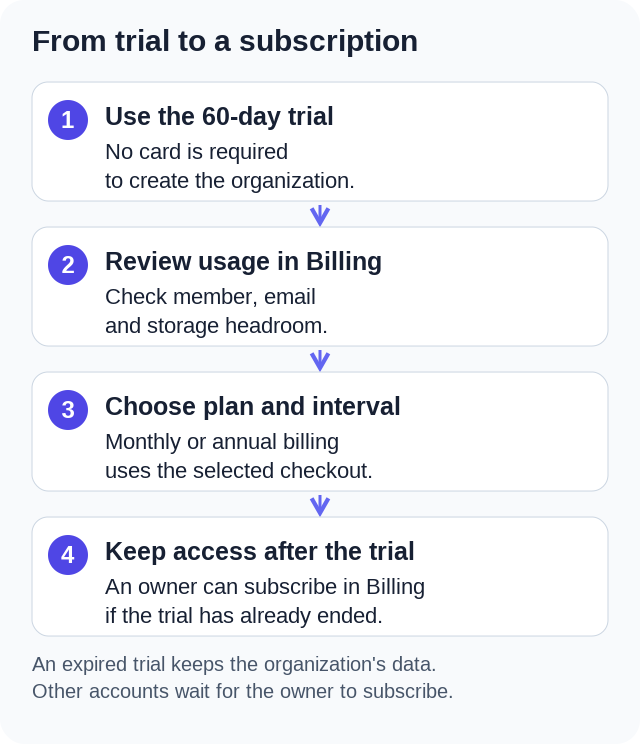
Owners and admins with "Manage Billing" upgrade a One Group Central plan from the Billing screen: open "Admin Panel", choose "Billing", choose "Monthly" or "Annual, save 20%", tap the plan you want, and pay through Stripe Checkout. The new plan takes effect as soon as the payment completes.
Upgrade when your organization outgrows its plan caps, or when your trial is ending. Stripe Checkout is a secure external payment page.
Requirements#
The Billing screen is visible to owners and to admins who hold the "Manage Billing" permission. Open "Admin Panel" from the home grid, then choose "Billing" in the drawer. If you do not see Billing in the drawer, ask an owner to grant you the "Manage Billing" permission.
What the Billing screen shows#
The "Current Plan" card shows your plan name, price, and status.
The usage card, headed "Usage this month", has meters for members, emails against your cap, and storage against your cap. A meter turns amber at 80%, which is your warning to plan an upgrade. See /help/billing/usage-limits for how to read these meters.
The plan picker lists the available plans with their prices and caps. The full comparison is in /help/billing/plans-and-limits.
Under "Manage subscription", each plan row shows the price for the billing period you picked:
| Plan | Monthly row | Annual row | Caption |
|---|---|---|---|
| Starter | "Starter ($49 / mo)" | "Starter ($39 / mo, billed $468 / yr)" | "Up to 100 members" |
| Growth | "Growth ($99 / mo)" | "Growth ($79 / mo, billed $948 / yr)" | "Up to 300 members" |
| Plus | "Plus ($149 / mo)" | "Plus ($119 / mo, billed $1,428 / yr)" | "Up to 500 members" |
| Enterprise | "Enterprise ($199 / mo)" | "Enterprise ($159 / mo, billed $1,908 / yr)" | "Up to 1,000 members" |
Your current plan carries a "CURRENT" badge and cannot be tapped. A worked example: an organization on Growth monthly pays $1,188 over a year, and the same plan paid annually costs $948, a saving of $240.
Upgrade step by step#
- Open "Admin Panel" from the home grid.
- Choose "Billing" in the drawer.
- Review the Usage card to confirm which cap you are approaching, so you pick a plan with headroom.
- Above the plans, choose "Monthly" or "Annual, save 20%". Annual bills once a year at 20% off the monthly price.
- In the plan picker, tap the plan you want.
- Stripe Checkout opens in a secure external payment page. Enter your payment details there. Your card information goes to Stripe, never to the portal.
- Complete the payment. You are returned to the app automatically.
- Back in the app, the Current Plan card shows your new plan.
After checkout#
A completed payment returns you to a "Subscription updated" screen that says "Thank you" and "Your subscription is being activated. It may take up to a minute for the new plan to appear on the Billing screen." Press "Back to Billing" to check, or "Or return to Home" to carry on. Leaving checkout without paying shows "Checkout cancelled" and "No changes were made"; nothing is charged.
If checkout cannot start, the Billing screen shows the reason. "Annual billing is not set up yet. Choose monthly for now, or contact support." means the annual option is unavailable, so choose "Monthly". "You do not have permission to manage billing for this organization." means you need the "Manage Billing" permission. Messages starting "Checkout is not available yet" or "We could not start checkout" mean the payment side needs our attention: email info@onegroupcentral.com.
What changes immediately#
Your new caps apply as soon as the payment completes. The member limit rises, so blocked invites go through, and anyone who was told the organization was full can use the link they already have. The monthly email cap rises, so blocked broadcasts can be sent. The storage cap rises, so blocked uploads succeed. There is no restart or waiting period.
Where to see your next charge#
The Current Plan card on the Billing screen shows your plan and price. Your card is charged through Stripe once a month, or once a year if you chose Annual, and the receipt arrives by email from Stripe after each charge. For questions about a charge, contact info@onegroupcentral.com.
Tip: Upgrading when a meter turns amber (80%) is smoother than waiting for a hard cap. Nobody hits an error, and you choose the timing.
Which blocked tasks should I retry after upgrading?#
Retry the task that reached a cap after the Current Plan card confirms the new plan. A member with a still-valid invitation can open the same link again; an upgrade does not require issuing a replacement invitation. If that link has expired, an admin must restore it instead.
A larger email cap lets an admin send a previously blocked broadcast. A larger storage cap lets an admin retry the document upload. The new allowance does not send messages or upload files on your behalf. Review the intended audience or file before retrying. If the plan card still shows the old plan after completed checkout, contact support with the organization and checkout details rather than assuming that the cap has already changed.
Stripe's Checkout documentation describes the payment page where customers enter their payment details, including the option of a Stripe-hosted page. The PCI Data Security Standard is the card industry's baseline of technical and operational requirements for protecting payment account data. These references describe Stripe's product and the card industry standard; they are not a certification of the portal.
FAQ#
Who can upgrade the plan?#
Owners, and any admin with the "Manage Billing" permission. Only they see the Billing entry in the admin drawer.
How do I pay?#
Payment happens on Stripe Checkout, an external secure payment page. The portal never sees or stores your card details.
How fast does the upgrade take effect?#
Immediately after the payment completes. Anything that was blocked by a limit starts working.
Can I change plans later?#
Yes. Return to the Billing screen and pick a different plan. If you are unsure which plan fits, contact info@onegroupcentral.com for help choosing.
Is there a nonprofit discount?#
The plan picker says that verified nonprofits get 20% off any plan, which stacks with annual billing. The discount is not applied in checkout. Email info@onegroupcentral.com with proof of 501(c)(3) status, and we set it up.
Can I add texting when I upgrade?#
Texting is a separate add-on and is not sold through the plan picker. Email info@onegroupcentral.com to arrange it.
Published: . Last updated: .