Blocking and reporting in chat
How do blocking and reporting differ?#
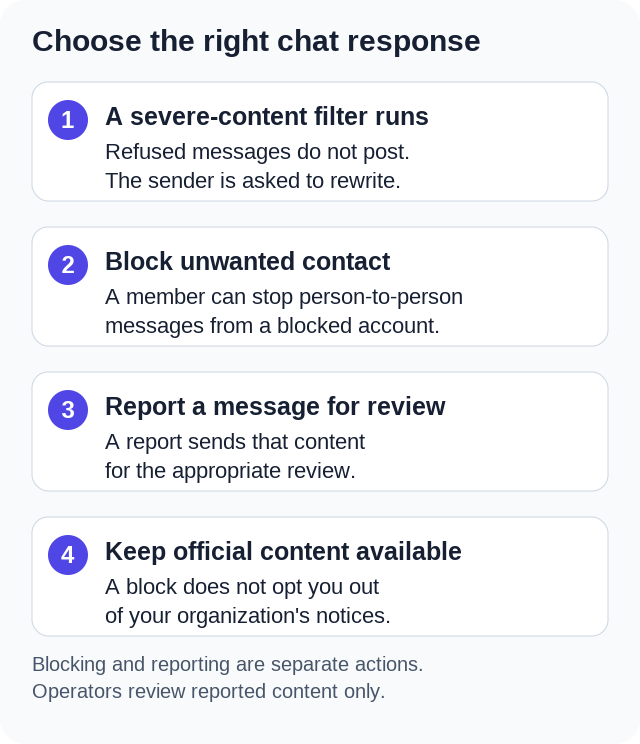
Blocking and reporting are two separate One Group Central chat tools for dealing with someone who is bothering you. Blocking is your own control and works right away: press and hold one of the person's messages and choose "Block". Reporting asks a reviewer to look at a specific message. You can use either one, or both.
Requirements#
You need chat enabled for your organization and the view chat permission.
Block a member#
Blocking takes effect immediately and does not wait for anyone to approve it.
- Open "Chat" and find any message from the person.
- Press and hold the message.
- Choose "Block" followed by the member's name.
- Read the confirmation and tap "Block".
Once you block someone:
- The blocked member's messages disappear from every channel you can see, including ones they sent before you blocked them.
- The blocked member stops seeing your messages too, so neither of you is left reading half a conversation.
- Any direct message between the two of you disappears from your chat list.
- The blocked member cannot start a new direct message with you.
- You stop getting notifications about anything the blocked member posts.
Blocked members are not told. There is no notice or badge, and from their side the conversation just goes quiet.
What blocking does not do#
Blocking covers person to person contact only. You keep receiving everything your organization sends, even if the person who sends it is blocked:
- Announcements
- Documents
- Elections and polls
- Calendar events and reminders
Personal blocking leaves official notices accessible. Officers send official notices, and a ratification vote should not be missed because of a personal dispute.
See who you have blocked, and undo it#
A block is invisible everywhere else, so your profile is the only place to review one.
- Open your profile from the icon in the top right.
- Scroll to "Blocked members".
- Tap "Unblock" next to the person.
The unblocked member's messages become visible again the next time the chat screen loads, including the ones sent while the block was in place.
Report a message#
Reporting is for content a reviewer should see, such as harassment, threats, or something that breaks your organization's rules.
- Press and hold the message.
- Choose "Report message".
- Add a short reason if you want to. A reason helps, but it is optional.
- Tap "Report".
A reported message is the only chat content an operator is ever able to read, and only in connection with your report. Ordinary conversations and direct messages stay private. Your admins can also delete a message in a channel they manage.
If a chat message worries you and you also do not want to hear from its sender again, report the message first and then block the sender. Blocking does not withdraw a report.
Why some messages are refused#
If you try to send a message containing slurs or severe obscenity, the message is refused and nothing is posted. Rewrite the message and send it again.
The filter targets abusive language, not difficult subjects. Words like harassment, assault, and rape are allowed on purpose, because those are the words you need in order to describe something that happened and raise it with your representatives.
Details and edge cases#
The "Report message" and "Block" options appear only on messages other people sent, and not on a message that has been deleted. Members with read-only chat access can still report and block. A report reason can be up to 2,000 characters, and a successful report shows "Message reported. Thank you." Reporting the same message again reopens your earlier report rather than filing a second one.
A blocked member who tries to start a direct message with you sees "You cannot start a direct message with this member." The message does not mention the block. If you have blocked nobody, the "Blocked members" list on your profile reads "You have not blocked anyone."
A message in the main conversation that the language filter refuses stays on screen marked "Not sent. Tap to retry", and retrying sends the same words again. Tap "Discard", then write a new message.
What should I include in a message report?#
Use the optional reason to explain why that particular chat message needs review. For example, say that the sender repeated a threat or continued contact after you asked them to stop. A report concerns the message you selected, so select the relevant message before opening "Report message".
If you also want to stop contact, report first and then block the sender. Blocking hides their messages and does not cancel the report. For an official notice or a wider organizational problem, contact your officers directly; blocking a sender does not remove their announcements, documents, polls or elections from your portal.
If someone will not leave you alone#
Blocking a member in chat stops their messages, but a block does not create a record for your organization. If someone is harassing you, report the messages as well, and contact your officers or building representative directly. A block is a personal setting. A report, and a conversation with your leadership, are what let the organization act.
Why do chat apps offer reporting and blocking?#
Apple's user-content guidelines and Google Play's user-content policy set requirements for apps that carry member messages. The two documents are policy references, not a claim that a reported message has been reviewed or that this app has received a new approval. Follow the report and block steps above for the current controls.
References checked October 12, 2026. This date records the source-link check, not a human or specialist review of this article.
Published: . Last updated: .