Using Your Portal
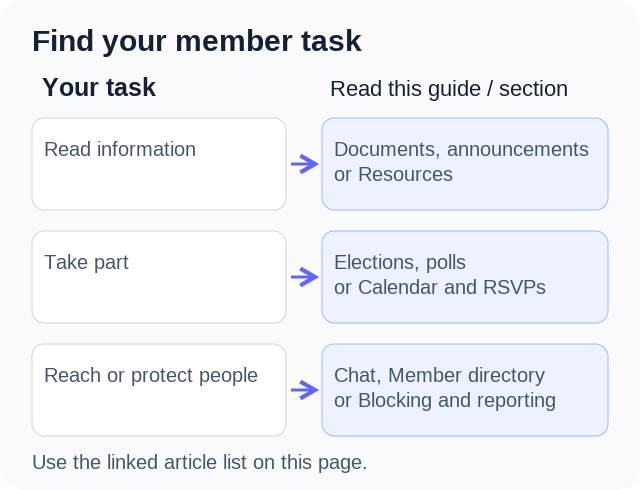
As a member of a One Group Central portal, you read your organization's documents and announcements, vote in elections, answer polls, chat with other members and RSVP to events, on a phone or a computer. Each guide below covers one task, the screen it starts from, and what your organization's admins can turn off.
How do I use my organization's portal?
- Viewing and searching documentsHow members browse, search, sort, and open documents, view PDFs in the app, download other files, and read encrypted documents with the lock badge.
The Documents section is your organization's shared file library, holding whatever your admins publish, such as bylaws, meeting minutes, and forms. You open it from the "Documents" tile on the home screen, and you can search, filter by category, and read PDFs without leaving the app.
- Reading announcements from the News tileHow members read announcements, filter by category, open attachments, and message the announcement owner with the Ask about this button.
Announcements are messages your organization sends to members, such as newsletters and reminders. You open them from the "News" tile on the home screen, which takes you to the Announcements screen. The tile is called News and the screen is called Announcements, but they are the same thing.
- Voting in elections step by stepHow members vote in elections, what scheduled, open, closed, and tallied statuses mean, how anonymity works, and where to find final results.
To vote in a One Group Central election, tap the "Elections" tile on the home screen, tap an election with a "Vote" button, make your selection on each question, and press "Submit Vote". Elections let your organization hold formal, anonymous votes, such as for board seats, contract ratifications, or bylaw changes, and you can vote only once per election.
- Vote receipts and verifying your voteWhat the Vote Confirmed receipt shows, what Election ID, Chain Position, and Entry Hash mean, and how to verify your vote was recorded.
A vote receipt appears on the Vote Confirmed screen after you submit a ballot. To verify your vote, press "Verify my vote" on the receipt screen, and the app compares your receipt with the election's vote chain. The receipt never shows how you voted.
- Answering polls and surveysRelease preview guide to answering polls and surveys, saving progress, editing when allowed, and understanding who can read your results.
To answer a One Group Central poll, open "Polls" from the home screen, then select an option on a quick poll and press "Submit", or press "Answer survey" on a survey card and finish with "Submit response". Multi-question surveys and the new ownership and audience controls are a release preview, implemented for the next release and not yet deployed.
- Using the calendar and RSVPing to eventsHow members open the calendar, switch between six views, RSVP Going, Maybe, or No, and add the calendar to Apple or Google Calendar in one tap.
One Group Central's calendar shows your organization's upcoming meetings, events and deadlines. Open the "Events" tile on the home screen to reach the Calendar screen, then reply Going, Maybe or No to an event. A personal subscription feed puts the events you can access into your own calendar app.
- Chat basics, channels, and direct messagesSend messages in channels and direct messages, star the conversations you use most, add attachments and reactions, reply in threads, and report a message.
One Group Central Chat is your organization's built-in messaging space, similar to Slack. Open it from the "Chat" tile on the home screen, then talk in shared channels, start a direct message from the "New direct message" row, share photos and files, and react to messages.
- Bookmark chat messages to find them laterSave important chat messages with a private bookmark, review them in the Bookmarks sheet, and jump back to the original conversation.
Chat bookmarks let you privately save a message you want to come back to, such as an address, a decision, or a link. To save one, long-press the message in any conversation and choose "Bookmark". Your saved messages live behind the bookmark icon in the chat app bar, and nobody else can see what you bookmark.
- Can other people see my bookmarks?
- How do I get back to the conversation a bookmark came from?
- Can I bookmark my own messages?
- Is there a limit on how many messages I can bookmark?
- What happens to my bookmark if the sender deletes the message?
- Why did the bookmark indicator vanish right after I saved a message?
- Member directory, search, and contacting membersBrowse and search your organization's member directory, contact a member by email with one tap, and understand who appears in your list.
The member directory is a searchable list of the people in your organization. Use the member directory to look someone up, see their role or job title, and contact them by email without ever needing to know their address. Open the member directory from the "Members" tab at the bottom of the screen.
- Resources and quick links from your organizationFind the curated links your admins share in the Resources section, search and sort them, and open them in your browser with one tap.
Resources are curated links your admins share with the whole organization: things like the bylaws site, a payment portal, or a signup form. Instead of hunting through old emails, you always find the current links in one place. Open them from the "Resources" tile on the home screen.
- Your profile, photo, and security settingsEdit your name, title, photo, and contact details, change your password, manage push notifications, turn two-factor on or off, and sign out.
The One Group Central profile screen opens from the person icon in the top right of the home screen app bar. There you edit your name, title and phone, tap your avatar to change your photo, use the "Push notifications" toggle, and open the two-factor authentication dialog to turn 2FA on or off.
- Notifications, unread badges, and status bannersWhat sends you a push, how the unread badges on each tile and the app icon count, and how opening an item marks it read.
One Group Central notifications reach you outside the app by email and push, unread badges inside the app show what you have not looked at yet, and status banners carry service announcements from the platform. Opening an item clears its dot and lowers the badge, and the "Push notifications" toggle on your profile turns push off.
- Blocking and reporting in chatHow to block a member so their messages stop reaching you, how to undo it, how to report a message for review, and what the language filter does.
Blocking and reporting are two separate One Group Central chat tools for dealing with someone who is bothering you. Blocking is your own control and works right away: press and hold one of the person's messages and choose "Block". Reporting asks a reviewer to look at a specific message. You can use either one, or both.
- View event galleries and contribute photosHow to find event albums, viewing and downloading photos, contributing as an editor, and understanding gallery access.
Event gallery in One Group Central keeps your organization's photos in albums. Open "Event gallery" from the home screen, browse or search the album covers, and open an album to see its photos; an editor your administrator assigns can upload photos.
- Pay dues and event feesRelease preview guide to checking a charge, paying through secure checkout, viewing payment history, and contacting the recipient about a refund.
Member payments are a development preview and are not deployed. The preview lets assigned payers check a charge's recipient and amount, continue to secure checkout and read payment history. Live use requires release validation and provider setup. Keep using your organization's current payment instructions until it announces an available collection.
- Delete your accountHow to delete your own member account from Profile in the app, what you need first, what deletion removes and which records stay with your organization.
You can delete your own member account in the One Group Central app. Open Profile, tap "Delete account", read what will be removed and which records will stay, then confirm with your current password. Deletion is permanent. Your organization's portal keeps running, and you can only rejoin if an admin invites you again as a new member.
Published: . Last updated: .