Bookmark chat messages to find them later
How do I save a chat message for later?#
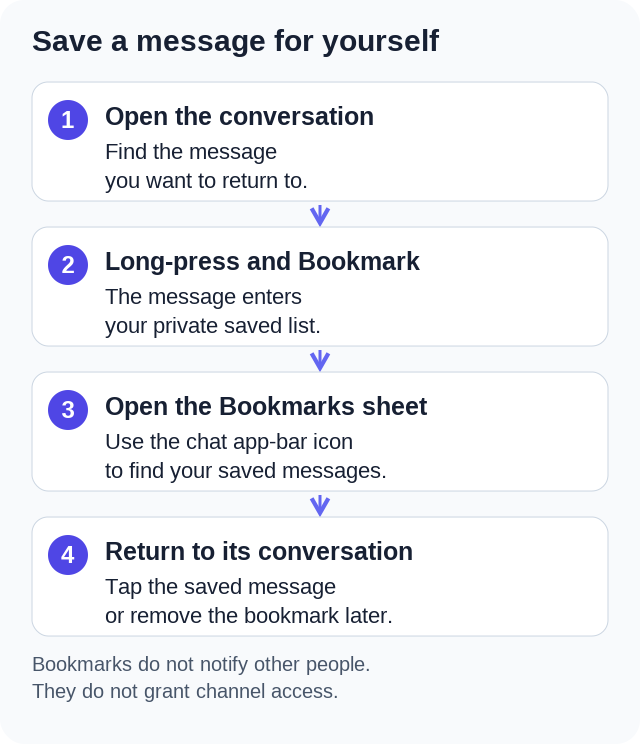
Chat bookmarks let you privately save a message you want to come back to, such as an address, a decision, or a link. To save one, long-press the message in any conversation and choose "Bookmark". Your saved messages live behind the bookmark icon in the chat app bar, and nobody else can see what you bookmark.
Requirements#
You need the Chat feature enabled and permission to view chat. You can bookmark messages even if your chat access is read-only.
Bookmark a message#
- Open "Chat" and go to any conversation.
- Long-press the message you want to save.
- Choose "Bookmark".
The message is added to your private bookmark list, and a small indicator appears on it so you can tell it is saved.
Open your bookmarks#
- Open "Chat".
- Tap the bookmarks icon in the app bar.
- The Bookmarks sheet lists your saved messages, newest saves first, with the sender and the channel each one came from.
- Tap a bookmark to jump to that channel and continue the conversation.
Note: Bookmarks are private to you. The sender is not notified, and no other member or admin can see your list.
Remove a bookmark#
Long-press the saved message and choose "Remove bookmark". It disappears from your Bookmarks sheet immediately.
What the Bookmarks sheet shows#
The Bookmarks sheet opens with the heading "Bookmarked messages". Each row has an amber bookmark icon, the first two lines of the saved message, and a line naming the sender and where the message lives: "#" followed by the channel name for a channel, or "Direct message" for a conversation with one person. A "Remove bookmark" icon at the end of each row lets you clear a save without opening the conversation first.
The sheet has three other states. Before you save anything it reads "No bookmarks yet. Long-press a message and pick Bookmark to save it here." If the list cannot load, for example because you are offline, it shows a message starting with "Could not load bookmarks"; close the sheet and open it again once you are connected. A saved message that was later deleted stays in the list as "Message deleted", so you can still see that you saved something there and remove the row.
Limits and edge cases#
The Bookmarks sheet lists your 200 most recent saves, newest first. Older saves beyond that number are kept but do not appear in the sheet, so remove the ones you no longer need to keep the list useful.
Bookmarking follows the same rules as reading. You can save any message you can see, including replies inside a thread and messages in a direct conversation. A deleted message has no "Bookmark" option. Tapping a saved thread reply opens its channel; open the thread from the parent message to read the replies around it.
Bookmarking is quick because the indicator appears before the server confirms it. If the save fails, for example on a weak connection, the amber indicator disappears again. Long-press the message and choose "Bookmark" once more when you are back online.
If an admin deletes a whole channel, the messages in it are gone and so are any bookmarks pointing at them. If an admin turns Chat off for your organization, the Bookmarks sheet is unavailable along with the rest of Chat.
Where the bookmarks icon sits on a phone and a computer#
On a phone, the bookmarks icon is in the app bar of the conversation list, next to "Refresh". It does not appear inside an open conversation, so use the back arrow to return to the list first. On a wider screen, such as a computer browser or a tablet in landscape, Chat shows the conversation list and the open conversation side by side, and the bookmarks icon stays in the "Chat" app bar the whole time.
When should I use a bookmark instead of posting again?#
Use a bookmark when a message is useful to you and the rest of the channel does not need another copy. For example, save a meeting address from a committee channel, then open the Bookmarks sheet before you leave. The saved item shows its sender and channel, so you can return to the conversation for any later correction. Saving a message does not announce it to the group.
Remove the bookmark when you no longer need that reminder. Removing your bookmark does not remove the original message or change another member's conversation. A bookmark also does not grant channel access: if your group membership changes, a saved message from a restricted channel may disappear from your list.
Troubleshooting#
If a bookmark disappeared, you may have lost access to its channel, for example because your group membership changed. Bookmarks from a channel you can no longer see are hidden.
If you cannot find the bookmarks icon, make sure you are on the Chat screen. The icon is in the chat app bar, not on the home screen. See Chat for a tour of the screen.
The bookmark button in your web browser saves a page address. Google's Chrome bookmark instructions and Mozilla's Firefox bookmark guide explain that browser feature. To save an individual chat message here, use the message's "Bookmark" action and the Bookmarks sheet inside Chat. A browser bookmark does not add a message to that sheet. References checked October 13, 2026.
FAQ#
Can other people see my bookmarks?#
No. Bookmarks are private to your account. Nobody is notified when you bookmark or remove a bookmark.
How do I get back to the conversation a bookmark came from?#
Open the Bookmarks sheet from the chat app bar and tap the saved message. Chat jumps straight to that channel.
Can I bookmark my own messages?#
Yes. Long-press any message, yours or someone else's, and choose "Bookmark".
Is there a limit on how many messages I can bookmark?#
The Bookmarks sheet shows your 200 most recent saves. Remove bookmarks you no longer need so older ones you still care about stay in view.
What happens to my bookmark if the sender deletes the message?#
The row stays in your Bookmarks sheet and reads "Message deleted". Tap the "Remove bookmark" icon to clear it.
Why did the bookmark indicator vanish right after I saved a message?#
The save did not reach the server, usually because the connection dropped. Long-press the message and choose "Bookmark" again when you are connected.
Published: . Last updated: .