Creating polls and surveys
Admins with "Create Polls" and organization owners create a quick poll or survey from "Polls" in the admin area: press "New Poll", choose "Quick poll" or "Survey", add questions or answer options, set both audiences, and create it. Multi-question surveys and the new ownership and audience controls are a release preview, not yet deployed.
Release preview: Multi-question surveys and the new ownership and audience controls are implemented for the next release and are not yet deployed. These instructions describe that release.
Use a quick poll for one question with choices. Use a survey when you need several questions, ratings, or written answers in one submission. Both live in "Polls". For a formal decision with ballot receipts, use elections.
Requirements and ownership#
The Polls feature must be enabled. Only an administrator with "Create Polls", or an organization owner, can create a poll or survey. The creator becomes its owner. That owning administrator and organization owners can manage its settings. Another admin does not automatically gain control.
To transfer responsibility, open the item's settings and change "Owner" to an active administrator in your organization who has "Create Polls" access, or to an organization owner. Save the change. If an owner leaves or loses their admin role, an organization owner can assign a replacement.
Choose who answers and who sees results#
Set the two audiences separately:
- "Who can participate": choose the groups that may answer. "All members" means no group restriction. Administrators also need to be in a selected participant group to answer.
- "Who can view results": choose groups that may read results, even if they cannot participate. "Managers only" keeps results with the item owner and organization owners.
Membership in any selected group qualifies. A member may answer without seeing results, review without answering, do both, or do neither. Members still need "View Polls"; answering also needs "Respond to Polls". See member groups and roles and permissions.
Results access includes individual answers. Named quick polls and surveys show identified responses to authorized results viewers. Anonymous quick polls show aggregates only. Choosing a results group is not a summary-only sharing option.
Existing polls after upgrade: The creators of existing polls become owners and results default to managers only. No answers are removed. Review each poll's owner and select any groups that should continue viewing results.
Create a quick poll#
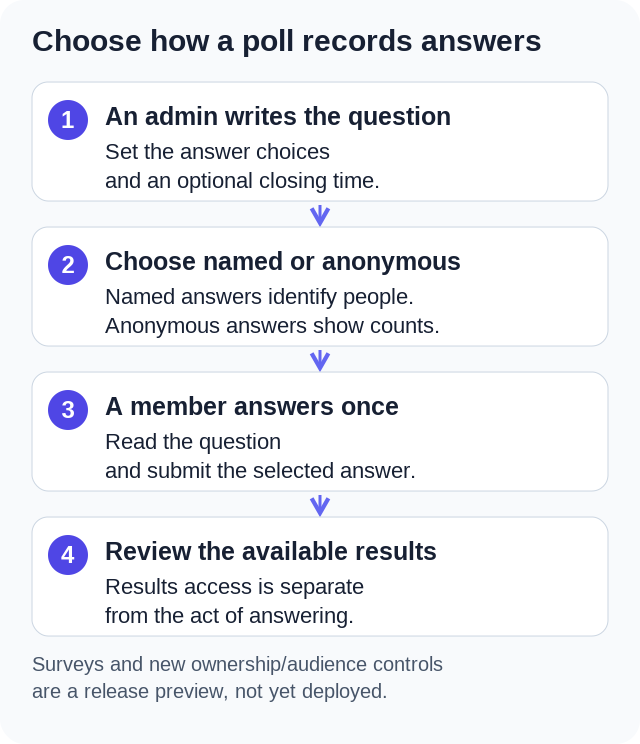
- Open "Polls" in the admin area and press "New Poll".
- In "Create a poll", choose "Quick poll".
- Enter "Question / Title", an optional description, and at least two "Answer Options".
- Choose whether to enable "Anonymous responses". Named polls show who chose what to authorized results viewers; anonymous polls show only counts.
- Optionally enable "Set expiry date" and choose the closing time.
- Set "Max selections per member" above 1 if members may choose several options.
- Set the participant and results audiences.
- Optionally add an announcement, then create the poll. Members in the poll's audience get one push and a Polls badge either way; you do not.
Quick poll answers are final and can be submitted once. Options and anonymity cannot change after creation. Question text locks once responses arrive; the owner can still adjust access and the closing time.
Press "Close Poll" to stop responses early, then confirm "Close Poll" in the dialog. Results remain available to authorized viewers. Quick polls cannot be reopened. Permanent quick poll deletion remains an organization-owner action.
Build a survey#
- Open "Polls", press "New Poll", and choose "Survey" in "Create a poll".
- Enter "Survey title" and an optional "Introduction".
- Set "Who can participate" and "Who can view results".
- Decide whether to enable "Allow response editing". This lets members update a submitted answer while the survey is open.
- Optionally set "Starts" and "Ends". The end must be after the start. The dates are shown in your local time.
- Press "Add question", or use "Templates" to start with "Member feedback", "Event feedback", or "Member priorities".
- Press "Save draft" to continue later, or use "Preview survey" to test the member experience. Preview answers are not saved.
- When ready, press "Open survey" and confirm. Questions lock at this point, including when the start time is in the future.
When the survey starts taking answers, everyone who can answer it gets one push and a Polls badge. If you set a start time, that happens at the start time rather than when you press "Open survey". You do not get one for your own survey. Reopening a closed survey raises the badge again for members who have not opened it, but sends no second push.
A template replaces the draft's current questions after confirmation. The survey can contain up to 100 questions. Use the question arrows to change order, "Duplicate question" to reuse a question, and "Delete question" to remove one. Conditions must keep pointing to an earlier question.
Question types and pages#
In "Edit question", choose "Question type", enter "Question", and optionally add "Help text (optional)". Turn on "Required answer" when a response is necessary, then press "Save question".
| Type | What members enter |
|---|---|
| Short text / Long text | A written answer, with optional character limits |
| Single choice / Dropdown | One option |
| Multiple choice | Several options, with optional selection limits |
| Rating | A whole-number scale, 1 to 5 by default |
| Net Promoter Score | A number from 0 to 10 |
| Number | A number, with optional minimum and maximum |
| Date | A calendar date |
| Matrix | One choice for each row |
| Ranking | Every option ordered from first to last |
Enter choices in "Options (one per line)" and matrix items in "Rows (one per line)". Keep labels distinct. "Page number" groups questions into pages; page numbers must remain in order.
For a follow-up, change "Show this question" from "Always" to an earlier choice question, then choose "Answer equals or includes". The follow-up appears only for that answer. If a member changes the earlier answer, hidden answers are removed and hidden required questions do not block submission.
Manage a published survey#
Use "Settings" to change the title, introduction, owner, audiences, dates, or editing policy. Published question definitions cannot change. Use "Duplicate survey" to create a new draft for revised questions; it copies settings and questions, with no responses or dates.
"Close survey" stops responses. Choose "Reopen survey" for a closed survey if its end time has not passed; update the end first if necessary. "Archive survey" applies to closed surveys and removes them from participant-only lists while retaining authorized results access. Archived surveys cannot be reopened. Only an unpublished draft can be permanently deleted with "Delete draft".
Read and export results#
A quick poll's "View Results" offers:
- "Summary": counts and percentages.
- "Responses": identified choices for named polls.
- "By Group": named poll participation and choices, for authorized admins with Groups enabled.
A survey's "View results" shows how many submissions match your filters and a summary for each question. Ratings and numbers include averages; Net Promoter Score uses the 0 to 10 responses; matrix questions summarize rows; ranking shows average positions. "Individual responses" expands each submitted answer set. Use the response-page arrows to read further pages.
Expand "Filter results" to choose a "Question" and an exact answer, or "From" and "To" submission times, then press "Apply filters". Administrators can also use "Participant group" when group choices are available; ordinary member reviewers do not have access to the group list. Answer matching uses exact text or a selected option, not a keyword search. Group filters use current group membership. Private unfinished drafts are excluded.
Use "Export CSV" to download all matching submissions, not just the visible page. The file includes member identities and answers, so share it only with authorized reviewers. The exported filter set is the same as the displayed results. A report above 10,000 matching submissions or 32 MB of answer data is refused instead of truncated; narrow the filters and try again.
RFC 4180 describes the CSV format, including the rule that fields containing commas, double quotes or line breaks should be enclosed in double quotes, which matters for long written answers. If you open the export in Excel, Microsoft's guide to importing and exporting text files explains how to open a CSV file and change the separator character. Those references describe the file format, not who should receive a file that contains member identities and answers.
FAQ#
Can I make a multi-question survey anonymous?#
No. Surveys identify the member and support saved progress and optional edits. The response screen tells members this before they answer. Anonymous quick polls remain available, but they are not a claim of secrecy from the authenticated service operator.
Does giving someone results access make them an administrator?#
No. A results viewer may review the selected item's results and export its submitted answers. A results viewer cannot edit its questions, ownership, audiences, or lifecycle.
Can I read an unfinished survey response?#
No. Saved drafts are private to the responding member. Results and exports use submitted responses only.
Why can I see a survey but not answer it?#
You may be a manager or results viewer without participant-group membership, or the survey may be outside its collection dates. Admin status alone does not bypass the participant audience.
Published: . Last updated: .