Scan a printed schedule into the calendar
Scan a schedule turns a photo of a printed or handwritten schedule, such as a flyer from the bulletin board, into calendar events. You photograph it, the app reads the text, and you review each detected event before anything is added, so you do not have to retype a page of dates.
Requirements#
You need the Calendar feature enabled and the Manage Calendar permission. Scanning works best in the mobile app. On the web it may not be available.
Scan a schedule#
- Open the admin area and choose "Calendar" from the drawer.
- Tap "Scan a schedule".
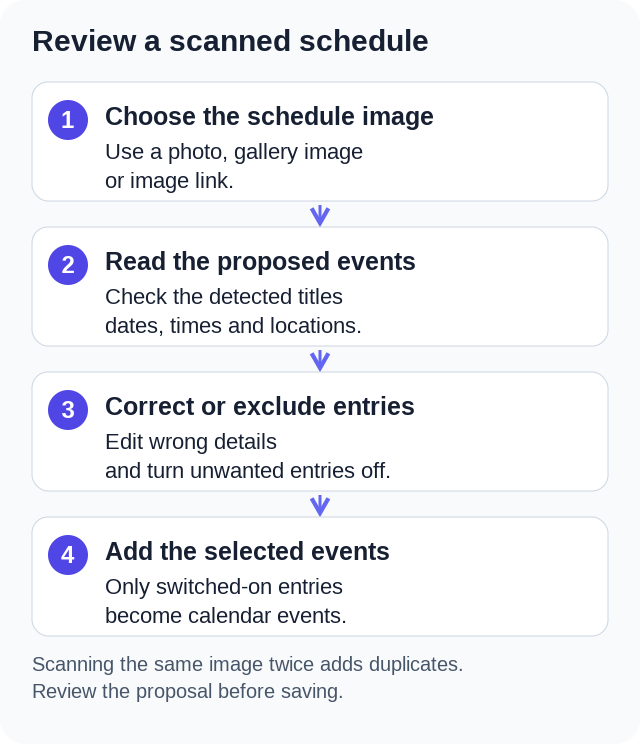
- Pick "Take a photo" to use the camera, "Choose from gallery" to use an existing image, or "Use an image link" to paste the address of a photo that is already online.
- Wait a moment while the text is read. On phones, the reading happens on the device itself. The photo is not stored anywhere.
- Review the detected events (next section), then press "Add N events" to create the accepted ones.
The added events appear on the admin calendar and on members' Events screen like any other event.
The review screen#
Nothing is created until you approve it. Each detected event shows a confidence percentage, which is how sure the reader is that it parsed the line correctly. Check low percentages carefully.
You can fix the title, date, time, or location right on the review screen. Each event also has a switch, and only events with the switch on are created. Turn off anything the scanner misread or that you do not want.
When you are ready, press "Add N events". The count covers only the switched-on events.
Tip: Keeping the good detections, fixing the near misses, and switching off the rest is usually faster than abandoning the scan and typing everything by hand.
Scanning on the web#
What should I check on a flyer with several meetings?#
Review each detected title, date, time and location against the original flyer. A line such as "Tuesday, 7 PM" needs the intended calendar date checked; the confidence percentage is not proof that the year or meeting place is right. Edit the proposed event before accepting it, and switch off headings or duplicate lines mistaken for events.
Before "Add N events", compare N with the number of meetings you intended to add. After saving, open the Calendar to confirm the new entries. If you already scanned the same page, check the existing list first: a second scan can create duplicates rather than updating the first batch.
Web scanning may not be available. If the message ends with "Try scanning from the mobile app.", switch to your phone or tablet, where the schedule text is read on the device.
Tips for a good photo#
- Lay the page flat and shoot straight on, not at an angle.
- Use even lighting and avoid shadows or glare across the text.
- Fill the frame with the schedule and crop out surrounding clutter.
- Printed text reads best. Handwriting is best-effort, and neat block letters do far better than cursive.
- Scan one schedule per photo. If the page has several tables, scan them separately.
Troubleshooting#
If few or no events are detected, retake the photo with better light and a straighter angle, and confirm the page actually contains dates and times. When nothing is found the app says "No events were found in that image."
For 24-hour times, 12:00 means noon and 00:00 means midnight. Check both ends of each detected time range before adding the events.
If dates land in the wrong year or month, edit them on the review screen before adding. Ambiguous schedules, such as a list of weekdays with no dates, are read relative to today's date.
Scanned events are ordinary events, so scanning the same page twice adds them twice. Delete the extras from the Calendar.
Tesseract's guide to improving output quality explains that recognition quality drops significantly when a page is too skewed, which matches the advice to shoot straight on. Google's ML Kit text recognition guide says each character should ideally be at least 16x16 pixels and that poor image focus can affect accuracy. Those references describe text recognition in general; the review screen is still where you confirm each date, time and location.
FAQ#
How do I scan a schedule into the calendar?#
Open the admin Calendar, tap "Scan a schedule", then choose "Take a photo" or "Choose from gallery". Review the detected events, fix anything that needs it, and press "Add N events".
Does the photo leave my phone?#
On phones, the schedule text is read on the device itself. The photo is used for the scan and is not stored by the portal.
Why can't I scan from the web app?#
Web scanning may not be available in your deployment. When it is not, the app tells you to try scanning from the mobile app, so scan from your phone instead.
Can it read handwriting?#
Sometimes. Neat printed handwriting often works, and cursive usually does not. Expect to edit more fields on the review screen for handwritten pages.
Published: . Last updated: .