Send email from your own domain
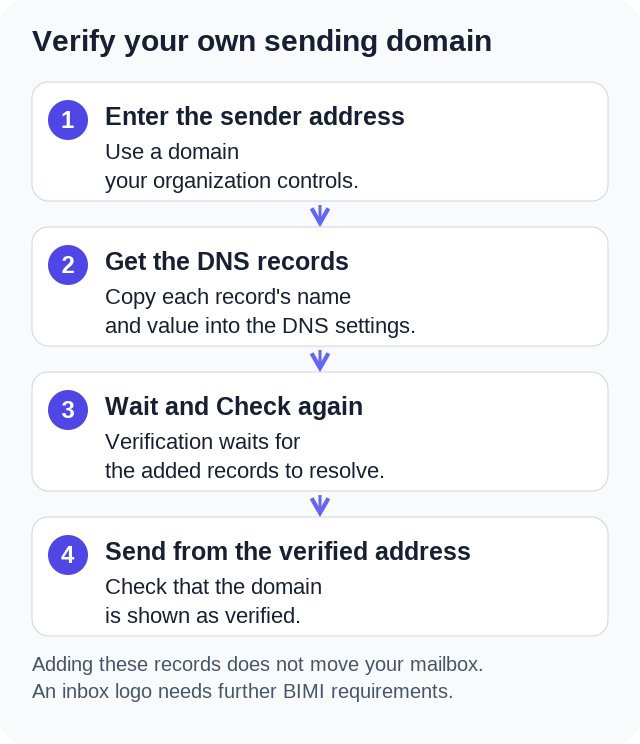
To send One Group Central email from your own domain, open the "Notifications" tab in "Settings", fill in the address under "Sending Domain", press "Get the DNS records", add the three records to your domain's DNS, then press "Check again". Members then see an address at your domain as the sender.
By default your portal's email is sent from a shared One Group Central address. The shared address works, but members see a name they do not recognize, and an unfamiliar sender is easy to ignore or report as spam.
Setting up your own sending domain changes the sender members see. Invitations, announcements, and password resets go out from an address at your domain, so a message from your organization looks like it came from your organization.
What you get#
Members recognize the sender. noreply@westburyteachers.org reads as the association, and a shared address does not.
Your delivery reputation is your own. Today every organization on the platform shares one sending reputation. On your own domain, how your mail is received depends only on your mail.
A logo in the inbox becomes possible. The standard that puts a logo next to a sender in Gmail and Apple Mail is called BIMI, and it is published on the sending domain. A shared domain can only ever carry one logo, so this is the step that makes your own possible. See the last section.
Before you start#
You need two things:
- A domain your organization controls, usually the one your website is on.
- Access to that domain's DNS settings, or a person who has that access. The person with access is usually whoever set up your website, or your registrar account (GoDaddy, Namecheap, Squarespace, Google Domains, and so on).
Custom sending-domain setup will not work with a Gmail, Yahoo, Outlook, iCloud, or internet provider address. Those domains belong to the email company, not to you, so nobody outside that company can add records to them. If your organization's email is something@gmail.com, you do not have a domain of your own yet.
In that case, set a "Reply Address" instead, on the same Notifications tab. Your announcements still go out from the shared sending address, which keeps them arriving reliably, but they show your organization's name, and when a member hits Reply it goes straight to your own inbox.
You do not need to move your website or change where your regular email goes. A sending domain only adds records and does not alter any existing mail.
Set it up#
- Open "Settings", then the "Notifications" tab.
- Under "Sending Domain", fill in the address you want mail to come from. The part before the @ is usually
noreplyornews, and the domain is yours. - Press "Get the DNS records".
- You will see three records. Give them to whoever manages your DNS, or add them yourself. Each one has a Name and a Value, with a copy button for each, because they go into two separate boxes in a DNS panel.
- Once the records are added, press "Check again".
About the wait#
DNS changes are not instant. DNS changes for a sending domain usually take between a few minutes and a few hours, and occasionally longer.
A failed check right after adding the records is normal and does not mean you did anything wrong. Wait an hour and press "Check again". When a check fails, the screen shows exactly which record was not found, so if something really is mistyped you can see which line to fix.
Nothing changes about your email until the check passes. Until then, mail keeps going out from the shared address exactly as before.
What the records do#
You are publishing three CNAME records. Two of them carry the keys that sign your messages (DKIM), which is how a receiving mail server confirms a message genuinely came from your domain and was not altered. The third routes the tracking and bounce handling.
The sending-domain DNS records are CNAMEs rather than raw keys so the keys can be rotated for you, and you never have to come back and update a record by hand.
Twilio SendGrid's domain authentication instructions explain the CNAME records and a common mistake where a DNS panel adds the domain name twice. RFC 6376 defines how receiving mail servers check a DKIM signature. Authentication helps a receiver check the sender; it does not guarantee inbox placement. References checked October 11, 2026.
After it is verified#
The screen shows the address you are sending as. Invitations, announcements, and password resets all switch over immediately. Nothing else about your portal changes.
You can press "Re-check" any time, and "Remove" to go back to the shared address.
Getting your logo in the inbox#
Sending from your own domain is the first step. The standard is BIMI, and it needs three more pieces on your side:
- Your DMARC policy set to enforcement on your domain.
- Your logo published as an SVG file at a public address.
- A mark certificate from a certificate authority. Gmail and Apple Mail both require one, and a BIMI record without a certificate displays nothing. A Verified Mark Certificate also requires a registered trademark for the logo.
The certificate carries a yearly cost and the trademark is a separate legal process, so this is a real project rather than a setting. We can point your DNS person at the right documentation when you get there.
FAQ#
Will this change where our regular email goes?#
No. You are adding records for sending only. Your existing mailboxes, forwarding, and anything else on your domain are untouched.
Can members reply to these messages?#
Replies go to your Reply Address if you set one, and otherwise to the address shown on the message. Announcements are sent from the noreply style address you choose, so pick a local part that fits how you want replies handled.
Someone else has our domain#
Each domain can belong to only one organization on the platform, which stops anyone from sending as a domain they do not own. If your domain is reported as already in use, contact us at info@onegroupcentral.com.
Do we have to do this?#
No. Everything works on the shared address. A sending domain is worth doing if members have told you they missed a message, if your announcements are landing in spam, or if you want your own logo in the inbox later.
Published: . Last updated: .