Answering polls and surveys
To answer a One Group Central poll, open "Polls" from the home screen, then select an option on a quick poll and press "Submit", or press "Answer survey" on a survey card and finish with "Submit response". Multi-question surveys and the new ownership and audience controls are a release preview, implemented for the next release and not yet deployed.
Release preview: Multi-question surveys and the new ownership and audience controls are implemented for the next release and are not yet deployed. These instructions describe that release.
Polls holds both quick questions with choices and longer surveys. A survey can ask for written feedback, ratings, dates, or several choices in one submission. For a formal ballot with a receipt, use elections.
Find a poll or survey#
Open "Polls" from the home screen. Your administrator chooses which groups may participate and which groups may read results. Participants and results readers can be different people. If the section is missing, ask your admin to check the Polls feature and your "View Polls" permission. Answering also requires "Respond to Polls".
A survey card is marked "Survey" and shows its owner, status, and any "Starts" and "Ends" times. "In progress" means you have a saved draft; "Responded" means you submitted. A results-only viewer may see "View results" without an answer button.
Answer a quick poll#
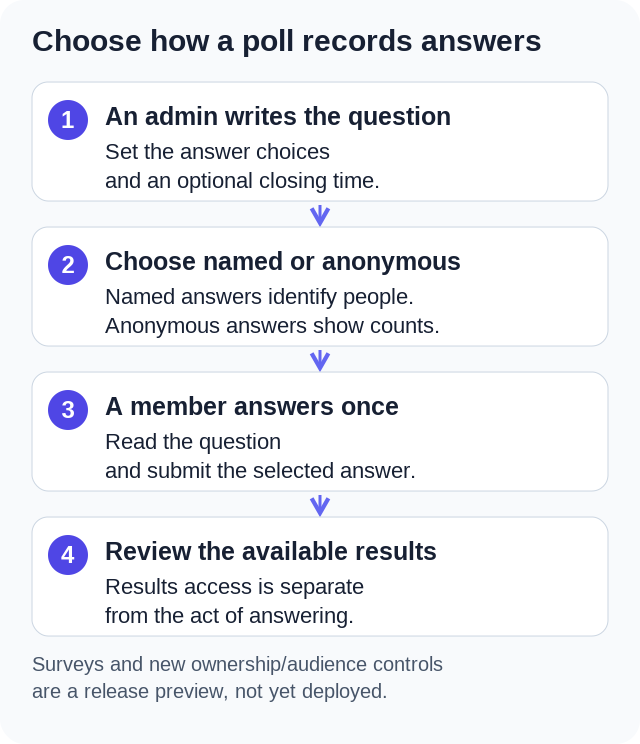
- Open a poll that is accepting your response.
- Select one option, or select up to the stated limit for a multi-choice poll.
- Read whether responses are anonymous or named.
- Press "Submit".
You can submit once and cannot change a quick poll answer afterward. A closing time or early closure stops further responses. If the poll closes while you are answering, refresh the list after the refusal message.
Anonymous quick polls do not show a named response list in normal result screens. The authenticated service still receives the account making the request; this is not a promise of secrecy from the service operator.
Answer a survey#
- Press "Answer survey" on the survey's card.
- Read the introduction and the privacy notice: your response includes your name and is shared with survey managers and authorized results groups.
- Complete the visible questions. An asterisk marks a required question.
- Use "Next" and "Previous" to move through pages. Follow-up questions can appear or disappear when you change an earlier answer.
- Press "Submit response" on the final page.
For a ranking question, use the arrows to put every option in your preferred order, or press "Use this order" to accept the displayed order. For a matrix, choose an answer for each required row.
The app checks required answers, allowed options, and any text, number, or selection limits before accepting the submission. A hidden follow-up is not required, and its previous answer is not retained when the condition no longer matches.
Save and return later#
Press "Save progress" to store an unfinished survey. You can leave and return on another signed-in device with "Resume survey". Moving between pages is not a substitute for saving. If you leave with unsaved answers, the app offers "Keep answering", "Discard", or "Save progress".
Saved drafts are private to you. Saved drafts do not appear in results or exports until you submit. You still need participant access, and the survey must still be open, when you return to finish it.
Review or edit your submission#
Press "Your response" to read what you submitted. If the owner enabled editing and the survey is still accepting responses, press "Edit response", make your changes, and submit again. Editing updates your existing response rather than adding a second one. A submitted answer cannot be changed back into an unfinished draft.
View results when permitted#
Participation does not automatically include results access. The item owner selects results-viewer groups separately. A results viewer can review even without answering.
For a named quick poll, authorized viewers can see counts and the named response list. Anonymous quick polls show aggregate counts only. For a survey, "View results" includes question summaries and identified "Individual responses". Saved drafts are excluded.
Authorized survey reviewers can use "Filter results" for a question and exact answer or submission times, then choose "Apply filters". The participant-group picker is available to administrators, not ordinary member reviewers. "Export CSV" uses the filters you applied to the displayed results. Exports contain member identities and answers and should stay with the people authorized to review them. If a report is too large, narrow its filters before exporting. Your own ability to answer does not grant this access.
RFC 4180 describes CSV fields and quoting, useful when a written survey answer contains a comma, a line break or a double quote. Microsoft's Excel guide explains the two ways to bring a CSV file into Excel: open it, or import it as an external data range. Neither reference changes who may receive an export, which still contains member identities and answers.
FAQ#
Why is my poll missing after the update?#
The poll owner may have changed the poll's participant or results audience. Existing poll results become private to managers during the upgrade until results groups are selected. Ask the owner to check the intended access.
Are surveys anonymous?#
No. Multi-question surveys identify the responding member. Read the notice before answering. Quick polls may use the separate anonymous option.
Why did a question disappear?#
The hidden survey question depended on an earlier choice that no longer matches. The hidden question's answer is removed, so the submitted response stays consistent with your current choices.
Can I finish after the deadline?#
No. A closing date, early closure, or lost participant access prevents further saves and submissions. A saved draft does not extend the deadline.
Published: . Last updated: .