Member directory, search, and contacting members
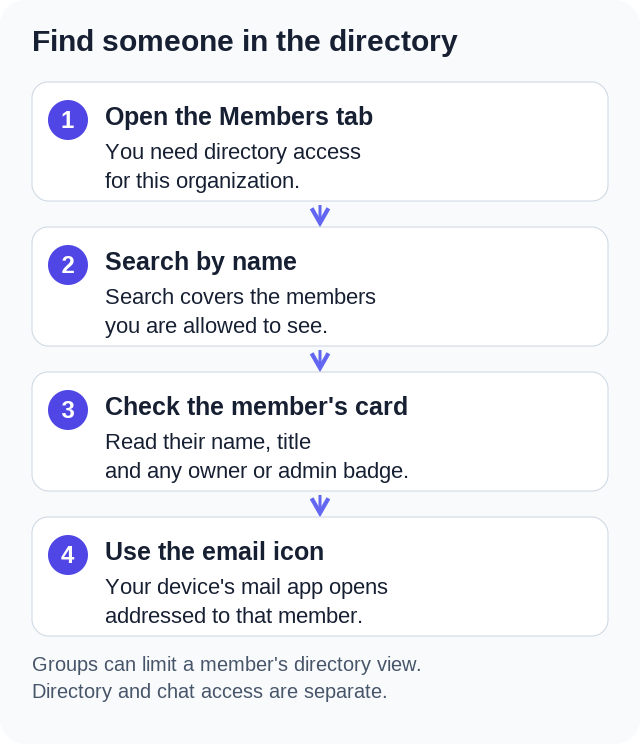
The member directory is a searchable list of the people in your organization. Use the member directory to look someone up, see their role or job title, and contact them by email without ever needing to know their address. Open the member directory from the "Members" tab at the bottom of the screen.
Requirements#
You need the Member Directory feature turned on and the view member directory permission. If the Members tab is missing, the directory is turned off for you; ask your admin.
Browse and search#
- Tap the "Members" tab in the bottom navigation.
- Scroll the list, or type a name in the search bar to filter it. Search runs on the server, so it covers everyone you are allowed to see, not just the names already loaded.
- A count shows how many members match. When there are more than 50 results, the list is split into pages of 50; use the page controls to move between them.
What a member card shows#
Each card shows the member's avatar, name, and job title, plus an "Owner" or "Admin" badge when the member holds that role. On the right is an email icon.
Contact a member#
Tap a member's email icon and your device's mail app opens with a new message already addressed to them. The directory never displays the email address itself; the address goes straight into your mail app.
Each member with an email address has a labeled "Email" button. Search for the member, then choose "Email" to open your mail app. Tapping the card still works. The portal does not send a message for you, and the directory still hides address text.
Tip: For a quicker conversation inside the app, you can often use Chat instead. Note that the chat people picker is independent of the directory, so you may be able to message someone by DM even when the directory is off.
How directory search works#
Search in the Member Directory matches any part of a member's name or email address, and capital letters do not matter. Typing the first few letters of a surname finds every member whose name or email address contains those letters, even though the address itself is never shown to you. Results are listed alphabetically by name, and the count line above the list, such as "37 members", shows how many matched. When there are more matches than fit on one page, the bar at the bottom reads "Page 1 of 3" with previous and next arrows.
The directory lists only active members. People who have been invited but have not accepted yet do not appear, and neither do suspended accounts. A new member shows up once they accept their invitation.
A member without a profile photo shows their initials in the circle instead. A member with no display name shows "(no name)". You can tap anywhere on a member's card, including the name and photo, to start an email to them.
What you see when the directory cannot load#
"No members found." means the list loaded and nobody is visible to you. When a search finds nobody, the screen reads "No members match" followed by your search words. A message starting with "Could not load members" means the request failed, usually because the connection dropped; tap "Retry", or the Refresh icon at the top of the screen.
Who appears in your directory#
What you see depends on how your admin uses groups:
- If you belong to one or more groups, you see only the members who share at least one group with you.
- If you belong to no groups, you see everyone in the organization.
- Owners and admins always see everyone.
Group membership is assigned by admins, so if your list looks smaller than expected, that is usually why. Admins can read more in Member Groups.
Troubleshooting#
If there is no Members tab at all, the Member Directory feature is off for your organization, or you do not have the view member directory permission. Ask your admin.
If a member you know is missing, you and that member probably do not share a group, so the directory leaves that member out of your view. That is expected, not an error.
If tapping the email icon does nothing, your device may not have a mail app set up. Set up a default mail app and try again.
Keeping yourself out of the directory#
If you would rather not be listed, ask your organization's administrator. A member can be hidden from the directory without losing anything else: you keep full access to documents, votes, chat, and events, and you can still look other members up. Only your own listing disappears.
Removal from the member directory is reversible, so if you change your mind, ask to be listed again.
Tapping the email icon opens your device's mail app, so the email app set as your default is the one that appears. Apple's iPhone guide explains choosing a third-party email app as the default, and Microsoft's Windows guide explains assigning default apps by file type or link type. Those guides cover your device settings only; which members you can see is still decided by your groups.
FAQ#
Why can't I see a member's email address?#
The directory never shows address text to members. Tapping the email icon opens your mail app with the address already filled in, so you can write to them without seeing it.
Why do I only see some members?#
If you belong to any group, your directory is limited to members who share a group with you. Members in no groups see the whole organization, and admins always see everyone.
How do I change what shows on my own card?#
Your name, title, and photo come from your profile. Open Your Profile from the person icon on the home screen to edit them.
Published: . Last updated: .