Using the calendar and RSVPing to events
How do I find events and RSVP?#
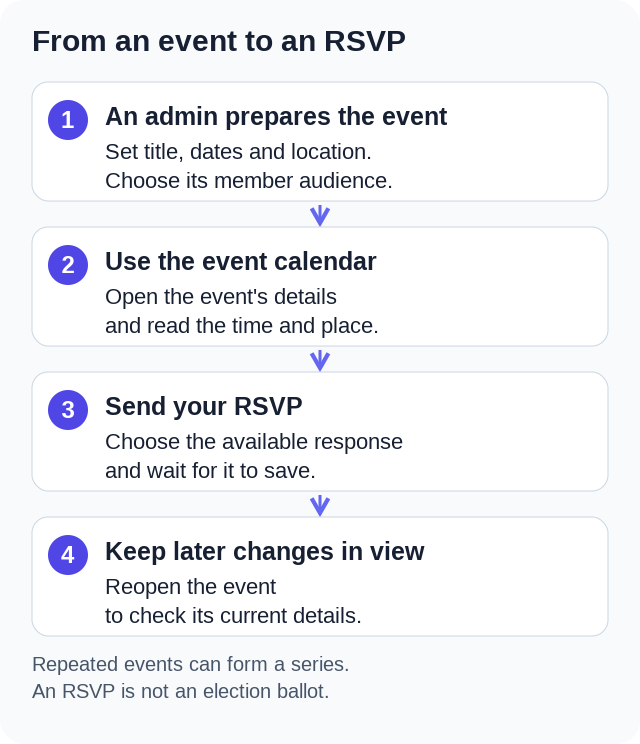
One Group Central's calendar shows your organization's upcoming meetings, events and deadlines. Open the "Events" tile on the home screen to reach the Calendar screen, then reply Going, Maybe or No to an event. A personal subscription feed puts the events you can access into your own calendar app.
Requirements#
You need the Calendar feature enabled and the view calendar permission. If you do not see the "Events" tile on the home screen, ask your admin. RSVPing also needs the rsvp to events permission.
Six ways to view events#
- Tap the "Events" tile on the home screen.
- Tap the view popup and choose one of six modes: "List" (the default), "Day", "3 Day", "Work Week", "Week", or "Month".
- Tap "Refresh" or pull down to reload.
In List view, upcoming events are grouped under date headers. Each card shows the title, the time ("All day" or a range like "8:00 AM to 9:00 AM"), the location, the description, and the RSVP chips. In the Day, 3 Day, Work Week, Week, and Month views, tap an event to open a bottom sheet with the same details and RSVP chips.
RSVP to an event#
Every event card, and the event details sheet, shows three chips with live counts: "Going (n)", "Maybe (n)", and "No (n)".
- Open the event, either directly in List view or by tapping it in a calendar view.
- Tap the chip that matches your answer. The chip lights up and the count updates.
- To change your answer, tap a different chip any time before the event.
Note: If your RSVP could not be saved, for example because you lost connection, you will see "Could not save your RSVP." Tap your chip again to retry.
Some events are targeted at specific member groups, and you only see events meant for you. Reminders about new content follow your notification settings, described in notifications.
Event reminders#
If the person who created an event set an alert on it (for example, 1 day before), you get a push notification when the alert comes due, and the red badge returns to the Events tile even if you already looked at the event. To stop these reminders, open your "Profile" and turn off the "Event reminders" switch. New events still show the ordinary unread badge either way.
Add the calendar to your phone#
Your organization's events can appear in the calendar app you already use, next to your other events, and they update on their own when the schedule changes.
- On the Calendar screen, tap the "Subscribe" (share) icon.
- Tap "Add to Apple Calendar" or "Add to Google Calendar". Your calendar app opens and asks you to confirm the subscription.
- Confirm, and the events appear. New and changed events arrive on their own from then on.
On an iPhone, iPad, or Mac the Apple button appears first. Everywhere else the Google button does. Both buttons use the same personal link, so it does not matter which one you pick if you use both.
If you use a different calendar app#
Press "Copy" to copy the link, then add it wherever your app accepts a calendar subscription, sometimes called "subscribe by URL" or "add by URL". Outlook, Fastmail, Thunderbird, and most others support this.
How often does it update#
Your calendar app decides how often a subscribed calendar updates, not us. Most check every few hours, and some only once a day. Every subscribed calendar works this way. If you need to see a change immediately, open the Events tile in the app, which is always current.
Keep the link private#
Warning: Your calendar subscription link is personal to you. The link shows the events you can see and it works without a password, so treat it like a password. Do not post it in a group chat or on a website.
If you have shared your calendar subscription link by accident, or lost a phone that had the link, tap "Reset link" in the Subscribe dialog. Resetting immediately breaks the old link so nobody can use it. You then subscribe again with the new one, and any calendar app still using the old link stops updating until you do.
Event payments#
Member payments are a release preview, not yet deployed. In the preview, an event's details sheet shows "Event payments" when your organization has Payments enabled. Tap it to open the payment requests you can access. The list includes requests for other purposes and events; it is not filtered to this event.
If you can create payment requests, a request started from this screen carries the event link. See payments for paying a request, or managing payments for setting up collections.
Event photos#
Release preview, not yet deployed: Open an event and press "View event gallery" to see photo albums linked to it. The button appears when you have gallery access. Album viewers and editors are chosen separately from the event's audience, so opening an event does not guarantee access to every linked album. See event galleries for browsing and photo steps.
Read your calendar app's subscription instructions#
Apple's calendar subscription instructions explain adding a calendar address on Apple devices. Microsoft's calendar import and subscription guide explains the Outlook alternatives. The two guides describe the receiving apps, not the portal's audience checks. Keep your personal feed link private and use the reset action if it was shared.
References checked October 12, 2026. This date records the source-link check, not a human or specialist review of this article.
FAQ#
Why is the tile called Events but the screen called Calendar?#
Events and Calendar are the same feature. The home tile is labeled "Events", and it opens the Calendar screen.
Can I change my RSVP after answering?#
Yes. Tap a different chip ("Going", "Maybe", or "No") at any time, and your answer and the counts update.
Why don't I see an event a colleague mentioned?#
Events can be targeted to specific member groups. If you are not in the targeted group, the event does not appear for you.
How often does my subscribed calendar update?#
Your calendar app refreshes the feed on its own schedule, typically within a day. New and changed events come in automatically, so there is nothing to re-import.
Published: . Last updated: .