Create your organization
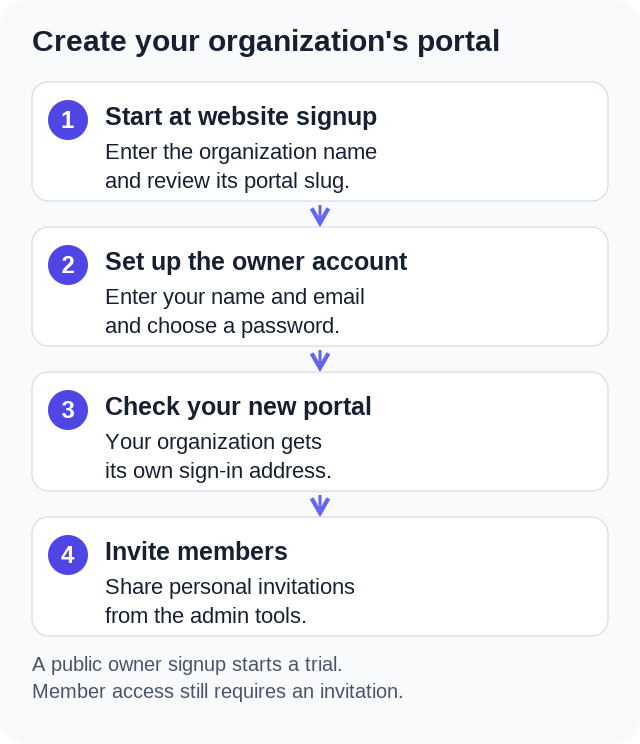
Create your organization's One Group Central portal at /signup. The page walks you through eight short steps in this order: an optional question about your kind of group, a screen about one private place for your group, an optional question about what to make easier first, a screen about how the portal can help, an optional question about your group size, your setup checklist, your email address, and the account form, where you press "Start my free trial". You can press "Skip to account creation" on any step before the account form. An eligible signup starts a free 60-day trial for up to 25 people, with no credit card required. You become the owner.
The new organization gives your group its own private portal at its own address. Do this once per organization, then invite everyone else.
If your organization already has a portal, use "Already a member? Sign in to your portal" at the top of the signup page. It opens the app, where you enter your "Organization slug" (the ending of your organization's address) if the app does not already remember it. See sign in to your portal. An invited member accepts their invitation instead of creating another organization.
Requirements#
To get the free trial, use an email address that has not had one before (see the one-trial rule below). You do not need a credit card, and you normally do not need an invite code.
Paid plans start at $49 per month for the organization, not per member. Every signup step shows the starting price and trial limit, and "Compare paid plans" opens the monthly price and member limit of each plan before you create your portal. Compare the full caps and allowances on Pricing.
Sign up#
- Go to /signup on onegroupcentral.com. Each step shows where you are, starting with "Step 1 of 8: your group".
- Pick the kind of group you are bringing together, or leave it blank, and press "Continue". If you followed a group link on the homepage, that kind of group may already be selected. All three questions are optional. Your answers only shape the examples and the checklist on this page; they are not saved and do not change your portal settings or choose a paid plan.
- Press "Continue" through the next four steps: a screen about one private place for your group, a question about what you would like to make easier first, a screen about how the portal can help with it, and a question about how many people are in your group. On the group size step the button reads "See my setup checklist".
- Read "Your starting checklist", then press "Continue".
- Enter your "Email address" and press "Continue". You sign in with this email address. If it is not a valid address, the page says so and stays on this step. Nothing is created yet: your account is created only when you submit the final form. To ask a person for help first, press "Email me setup help" on this step. It sends the address you typed to our team right away, and a person replies with the setup link. It does not create an account.
- On the last step, "Email address" comes first and shows the email you entered on the step before; change it here if you need to. If you skipped ahead, enter it here. Below it, enter your "Organization name". The organization name is the name your members will see in the app.
- Check the "Your portal address" line under the organization name. Its ending is made from your organization name, and the app calls this ending your organization's slug. The line shows your portal's sign-in address:
https://app.onegroupcentral.com/<your-slug>/login. To change the ending, select "Edit". The line is replaced by a "Your portal address" field where you type only the ending, and the full address is hidden while the field is open. If your organization name does not make an ending of at least 3 letters or numbers (a short acronym, or a name in another script), the field opens on its own and there is no line; type an ending there. Use 3 to 63 lowercase letters, numbers, and hyphens for the ending, starting and ending with a letter or number. Keep it short and recognizable. If the address is invalid when you submit, the field opens and receives focus so you can correct it. - Enter "Your name".
- Create a "Password". Use a long passphrase. Ordinary letters and numbers allow 12 to 72 characters; emoji and accented letters count toward the length limit faster. A password is refused when it is mostly a common word or pattern such as "password" or "123456", when it contains the part of your email address before the @ (if that part is 4 or more characters), or when it repeats only a few different characters. Containing a common word is not enough to refuse a long passphrase; the common words have to make up most of it. If the page says your password has appeared in a known data breach, choose a different one. Press "Show" to see what you typed.
- Press "Start my free trial". The page shows "Your free trial is ready" with your email and portal address. Press "Open my trial portal" to sign in.
To go straight to the account form, press "Skip to account creation" on any step before it. Press "Back" at the top left to return to the previous step; your answers stay selected. Pressing Enter in the email field or on a selected choice works like "Continue". After you press "Continue", "Back" or "Skip to account creation", focus moves to the new step's heading, where Enter does nothing; move to a choice or to "Continue" first. On the email step and the account form, focus goes to the first field instead. Enter never creates your portal before the last step. "Back to site" at the top right leaves signup.
Tip: Your portal address cannot be changed after signup. It is part of your portal's sign-in address and of the addresses inside the portal, so pick an ending your members will recognize, like riverside-hoa rather than rhoa2026.
Save your progress and return later#
The signup page automatically saves your organization name, any custom portal address, your name and email address in this browser on this device. The saved details expire seven days after your last edit. Your answers to the three questions are not saved.
Return to /signup in the same browser to restore your details. The page says "Your unfinished signup is restored from this device." A saved organization name, portal address or name opens the last step, and an email address alone opens the email step. Your password is never saved, so enter it again before submitting; the last step reminds you with "Enter your password to continue." The saved draft does not include an invite code either. A code that came in a link to the site is kept only while that browser tab stays open, and a code you type is not kept.
Once something is saved, "Clear saved details" appears on the email and account steps. Selecting it removes the saved draft, empties the email, organization name, portal address, name and password fields, clears your answers to the three questions, and returns you to step 1. Confirmed portal creation also removes the draft. If your browser blocks storage, signup still works; keep the page open to avoid losing your progress. A saved draft stays in your browser. It does not send your email address to analytics or arrange a recovery email.
What the trial includes#
An eligible signup starts a 60-day free trial of the available portal features. Trial limits: 25 members (you and your admins included), 500 emails per month, and 200 MB of storage. If you need more people to evaluate, email info@onegroupcentral.com and we will raise the member limit for your trial. When you outgrow those, paid plans lift the caps: Starter $49, Growth $99, Plus $149, Enterprise $199 per month. Anything still in preview is not part of the trial; see free trial for what is included.
Setup help is available during the trial. Contact info@onegroupcentral.com if you need help preparing your member list or getting your first documents into the portal.
One free trial per email address#
Each email address gets one free trial. If you sign up again with an email that already had a trial, the organization is still created, but without a trial. The page then shows "Your organization is ready" and a "Sign in and choose a plan" button instead of the trial message. Sign in and you land on the new organization's Billing screen, where you subscribe to activate it.
If signup reports an error#
The form keeps your details and focuses a missing or invalid field so you can correct it. While the request is running, wait for the result instead of submitting again.
If the page says "That portal address is already in use. Change it in the Your portal address field above, or sign in if this is your organization.", the "Your portal address" field opens with the cursor in it. Choose a different ending, or sign in if this is already your organization. The ending must be unique across all organizations.
If the page says it could not confirm creation or the connection was lost, check whether you can sign in at your chosen portal address before trying again. The request might have succeeded even though its response did not reach your browser. If you are unsure, contact info@onegroupcentral.com and include the portal slug and the approximate time; never send your password. Use "Check your portal" or "Contact support" when those links appear. If a successful response could not be confirmed, the creation button changes to "Check creation status" and stays disabled so that the same page cannot create another organization by accident.
If a request takes more than 30 seconds, the page stops waiting and offers "Check your portal" and "Contact support". A timeout does not tell you whether creation succeeded, so the page keeps creation disabled to avoid a second request. Use "Check your portal" first. If your portal does not exist, reload /signup in the same browser: your saved details come back, and you enter your password again.
If the page says "Too many signup attempts from this connection. Try again in an hour, or email info@onegroupcentral.com and we will help you finish.", wait an hour before trying again, or email us and we will help you finish. If signup is temporarily unavailable, try later. If the page says signup needs an invite code, we have turned on invite codes for now. Enter yours in "Invite code", or press "Request an invite code" to ask for one. Your details stay in the form.
What happens next#
- Your organization and your account are created together. You are the owner, with full control over settings, permissions, and billing.
- Press "Open my trial portal" on the success screen ("Sign in and choose a plan" if your email already had a trial), or sign in at
https://app.onegroupcentral.com/<your-slug>/loginwith the email and password you just entered. See how to sign in. - Invite your members. Open "Admin Panel" from Home. Until three people are invited, the admin dashboard shows a "Get your portal moving" card. Its button opens Invites and reads "Invite your first member", then "Invite the next member" once someone is invited. See inviting members.
What should I prepare before inviting the whole membership?#
Confirm that the organization name and portal address are recognizable to members, and keep the owner's sign-in email and the portal address available to the person responsible for the portal. You can change the organization name later in Settings. The portal address cannot be changed, and members see it in their sign-in address.
Start with the administrators who will upload documents or send announcements and a few ordinary member accounts. Create any groups needed for a CSV invitation batch before uploading the roster. Test a member's view separately from the owner view: an owner can see administrative controls that invited members should not receive. Then use the single-member invitation guide to expand the group within the trial cap.
Verify your email address#
Shortly after signup you will receive a verification email. Its link is an ordinary web link, so it opens One Group Central in any browser. The app confirms your address on an "Email verified" screen with a "Go to sign in" button. The link is valid for one hour. If it expires, sign in anyway: your portal works either way, and you do not need a new link.
NIST SP 800-63B, the federal digital identity guideline, discusses password length and checking a new password against a blocklist of commonly used, expected or compromised values. RFC 3986 defines web address syntax and lists the unreserved characters, which include lowercase letters, digits and the hyphen used in a portal slug. The signup form's own rules decide which passwords and slugs are accepted; these references explain the background, not those rules.
FAQ#
Do I need a credit card to start?#
No. The 60-day trial requires no payment details. You only add a card if you subscribe to a paid plan.
Can I change my organization name or slug later?#
You can change your organization name any time in Admin Panel > Settings > Identity, in the "App / Organization Name" field. Your portal address, including its slug, cannot be changed after signup.
What happens when the trial ends?#
When the 60-day trial ends, your members can't sign in until you subscribe. As the owner you still can, straight to the Billing screen, so you can pay. Your data is kept, and subscribing restores access for everyone.
Why did my signup not include a trial?#
Your email address was already used for a free trial. Sign up with a different email, or subscribe to activate the organization.
Published: . Last updated: .