Notifications, unread badges, and status banners
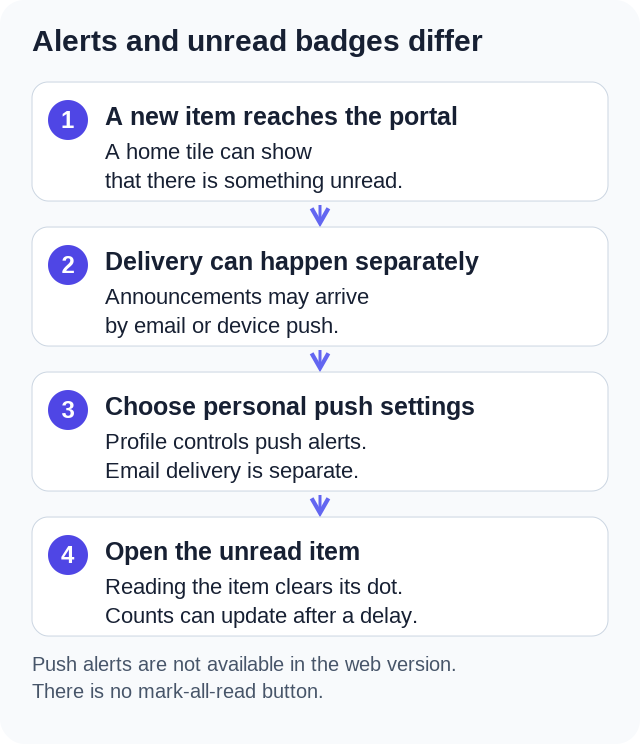
One Group Central notifications reach you outside the app by email and push, unread badges inside the app show what you have not looked at yet, and status banners carry service announcements from the platform. Opening an item clears its dot and lowers the badge, and the "Push notifications" toggle on your profile turns push off.
What triggers a notification#
Email covers invitations and announcements your admins send by email, plus account emails like password resets.
Push is a device alert. You get one push for each new thing you can see:
- An announcement, when it is published (a scheduled announcement pushes when it goes out, not when it is scheduled).
- A new document, poll, or resource link.
- A survey, when it opens for answers. A survey set to start later sends its push at the start time. Closing and reopening a survey does not send a second one.
- A new event on the calendar. A repeating event sends one push for the whole series, not one per date. Events your admin imports from another calendar do not send a push.
- An election, when voting opens. A draft or scheduled election sends nothing until then.
- A chat message in a channel or direct message you are part of. A reply inside a thread goes to the people in that thread.
You do not get a push for something you added yourself, or for a survey you own. Tapping a push opens the matching section: Announcements, Documents, Polls (for a poll or a survey), Resources, the calendar, the election itself, or the chat conversation.
You need the app installed on a phone or tablet to receive push notifications. See Install the app.
The push toggle on your profile#
You can turn push alerts off with the "Push notifications" toggle on your profile screen (person icon, top right of Home). The toggle turns off push only, and email still arrives. See Your profile for the full profile walkthrough.
Events can also remind you before they start. If an event's creator set an alert on it, you get a push at that time and the Events tile shows its red badge again, even if you had already opened the event. The "Event reminders" toggle on the same profile screen turns event reminders off. New events still raise the ordinary unread badge either way. See Calendar and RSVPs.
Unread badges#
- The "Home" tab icon carries a badge with your total unread count, chat included.
- Each home grid tile (Documents, News, Elections, Polls, Events, Chat, Resources) carries its own badge for that section. The Chat badge is the number of unread messages across all your conversations.
- The same total appears on the app icon on your device. On iOS this is a number on the icon. On Android it depends on your launcher: Samsung shows counts, stock Pixel shows a dot only, and some launchers show nothing.
A badge only counts things you can open. Something your admin aimed at a group you are not in, a section your organization has turned off, and something you added yourself never raise a badge for you. Each list shows a dot on exactly the items the badge is counting.
Some items count only while there is something to do:
- An election counts while it is open for voting. When voting opens it counts again, even if you looked at it while it was a draft or scheduled.
- A poll counts while it is open and has not passed its end date.
- A survey counts on the Polls tile while it is taking answers and you are one of the people it asks. Once you submit your response it stops counting, whether or not you opened the card again. If you are not allowed to answer polls, surveys never raise your badge.
- An event counts until it starts, and a repeating event counts once for the whole series.
The app icon badge stays current even while the app is closed, because each push carries the count. Badges clear when you sign out, and the app icon badge does not apply on the web version.
How items are marked read#
Items are marked read one at a time, when you open them:
- Expand an announcement card.
- Open an election, from the list, a link in an email, or a push.
- Open a poll, or press any button on a survey card ("Answer survey", "Resume survey", "Your response" or "View results").
- Open or download a document, from the list or a link.
- Tap a resource link.
- Tap an event on the calendar, or answer its RSVP. Opening one date of a repeating event clears the dots on all its dates.
- Open a chat conversation.
There is no mark-all-read button. Opening the item is what clears its dot and lowers the badge.
Events on the calendar#
A new event raises a badge on the Events tile and a dot on the event card in the list. Tap the event to open its details and the dot clears.
Only events that have not happened yet are counted, because a meeting that already took place has nothing left to act on. And only events inside the year the calendar shows are counted, so a badge always points at something you can open. Events your admin imported from another calendar appear in the list without raising the badge.
Editing an existing event does not raise the badge again. The badge tracks what you have not seen, and ignores changes to things you already saw. Announcements and documents work the same way.
Note: Badges update when you open the app, when you come back to Home, and when a push arrives while the app is open. Otherwise they refresh about every 2 minutes. Pull to refresh in any list to update it sooner.
Status banners#
Occasionally a full-width status banner appears at the top of the screen. The banner is tinted with your organization's color for information, amber for warnings, and red for critical notices. Status banners are service announcements from the platform.
- If a banner shows a close button, tap it to dismiss the banner. The dismissal is remembered on this device.
- Some banners are intentionally not dismissible and stay until the notice ends.
- If a banner shows link text, tap it to open the page in your browser.
Troubleshooting#
If no push notifications arrive, check the "Push notifications" toggle on your profile, then check your device's notification settings for the app. Push is not available on the web version.
For the device setting, Apple's iPhone guide shows Settings, Notifications, then the app. Google's Android guide covers app notifications and notification dots; the available controls vary by phone. References checked October 11, 2026.
If the app icon badge seems wrong on Android, remember that badges depend on your launcher. Samsung shows numbers, stock Pixel shows only a dot, and some launchers show nothing at all. The app cannot change the launcher's badge style.
If a badge will not clear, open the item that has a dot in that section's list, for example by expanding the announcement or opening the document. Badges update when you return to Home, or pull to refresh.
FAQ#
How do I mark everything as read?#
There is no mark-all button. Open each item, for example by expanding the announcement or opening the document, and its unread dot clears. The badge goes down as soon as you open it.
Why did I get an email even though I turned off push?#
The profile toggle controls push alerts only. Your organization controls email delivery, and email keeps arriving whatever the toggle says.
Why does my Android phone not show a number on the app icon?#
Number badges depend on your launcher. Samsung devices show counts, and stock Pixel launchers show a dot only. The in-app badges show the count either way.
Can I dismiss the banner at the top of the screen?#
Only if the status banner has a close button. Status banners without a close button are marked must-see by the platform and remain until the notice period ends.
Published: . Last updated: .