Roles and permissions for owners
What can members, admins and owners do?#
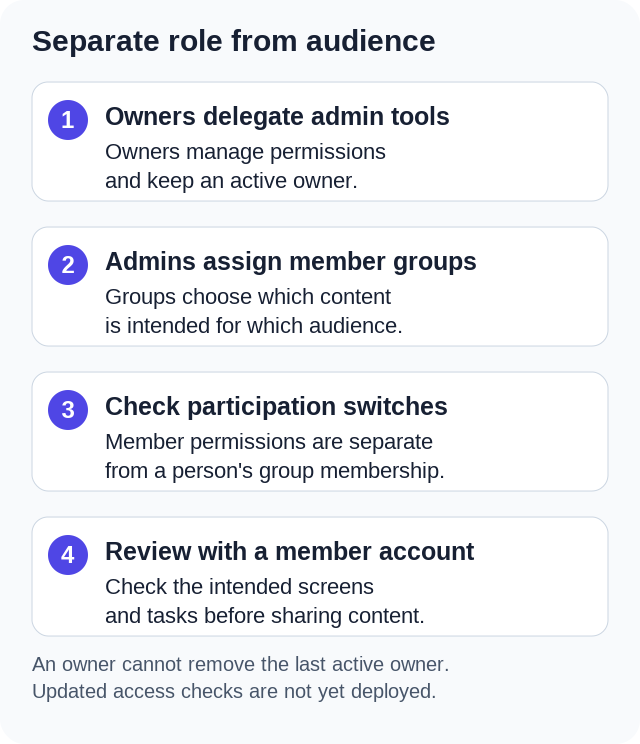
One Group Central has three roles: member, admin, and owner. Owners hold full control, including billing and the Admin Permissions screen, and delegate pieces of it to admins through granular permission switches. Members use the portal with no admin access, and get their own set of participation switches.
Requirements#
You need an owner account for the Admin Permissions screen and for promoting or demoting. Admins with the "Edit Member Roles" permission can manage member permissions and suspensions.
The three roles#
- Member: uses the portal (documents, announcements, voting, chat) with no admin access.
- Admin: sees the Admin Panel; what they can do there is controlled by per-admin permission switches.
- Owner: full access to everything, including billing and the Admin Permissions screen. Owner capabilities remain subject to server safeguards such as last-owner protection and election preservation holds.
Promote or demote on the Members screen#
- Open the Admin Panel and choose "Members".
- Search or filter to find the person, then tap their row.
- In the sheet, tap "Promote to Admin" or "Demote to Member". The change applies with one tap; there is no confirmation dialog, so tap deliberately.
Rules to know:
- Only owners can promote.
- Admins see an owner's role button disabled, with the tooltip "Owner accounts cannot have their role changed here." Only an owner can change an owner's role or suspend an owner, and the server refuses an admin who tries.
- Last-owner protection is enforced by the server: an organization can never be left without an active owner.
Add an owner or hand over the role#
Officers change, so an owner can make someone else an owner from the same sheet.
- Open "Members" and tap the person's row.
- Tap "Make Owner".
- Read the confirmation and tap "Make Owner" again, or "Cancel".
The new owner gets full access, including billing, settings, and managing other admins. Only an owner sees "Make Owner".
To change another owner's role, open their row and tap "Change to Admin" or "Change to Member". If they are the only active owner, the app says "This is the only owner. Make someone else an owner first."
You cannot change your own role. To step down, make your successor an owner first, then ask them to open your row and tap "Change to Admin" or "Change to Member".
Admin Permissions (owner only)#
Open "Permissions" from the drawer. Each admin gets a card of switches in these groups, then a "Save" button:
- Members: Invite Members, Remove Members, View Members, Edit Member Roles
- Documents: Upload Documents, Delete Documents
- Broadcasts: Create Broadcasts, Send / Publish Broadcasts
- Elections: Create Elections, Open & Close Elections
- Polls: Create Polls, View Poll Results
- Settings: Edit Branding, Edit Features, Edit Notifications, Edit Legal & Contact
- Other: View Audit Logs, Manage Billing, Manage Resources, Manage Groups, Manage Calendar, Manage Chat Channels, Manage Event Gallery, Manage Payments (development preview)
Release preview: After the updated release deploys, Create Polls covers both quick polls and multi-question surveys. Only administrators can create them. Each item has an owner; that administrator and organization owners manage it. Participant groups and results-viewer groups are selected independently. A general results permission does not override the item's results audience. See creating polls and surveys for the access rules.
New admins start with ordinary admin switches on. Manage Payments is a development-preview exception: it starts off and an owner must grant it explicitly. Turn off what you want to withhold; the matching drawer items and actions disappear from that admin's view. One exception: the Calendar drawer item stays visible when Manage Calendar is off, but that admin cannot add, edit, import, or delete events.
Member Permissions#
Open "Member Permissions" from the drawer (owner, or an admin with "Edit Member Roles"). Each member gets switches in these groups:
- Content Access: View Announcements, View Documents, View Elections, View Polls, View Resources, View Calendar, View Social, View Event Gallery
- Participation: Vote in Elections, Respond to Polls, RSVP to Events
- Community: View Member Directory, View Chat, Send Chat Messages
Every member permission switch is on by default. Turning a switch off hides the matching section from that member and blocks the action on the server too.
Tip: Groups choose an audience; Member Permissions decide whether a person can use a module at all. For a family-only account, review both View Elections and Vote in Elections, and both View Polls and Respond to Polls. Assigning a family group does not automatically change these switches. To disable a feature organization-wide, use Settings > Features.
Release preview, not yet deployed: The updated release applies member permissions consistently to direct election and poll detail/results, voting/responding, document download/viewing, calendar feeds and RSVP, unread counts, related announcements, and notification delivery. Test the existing groups and individual permissions using a regular member account after deployment. An observer grant cannot override these restrictions.
Event gallery access#
Manage Event Gallery lets an owner or permitted admin create albums, choose their access, publish or return them to draft, and delete them. An album's viewing groups are separate from its editor groups and selected individual editors. An editor can prepare a draft and edit photos without receiving the Manage Event Gallery permission.
Members need View Event Gallery even when they are an assigned editor. Editors can view albums assigned to them outside the normal viewing audience, including drafts. Turning the Gallery feature off blocks gallery requests for everyone. See managing event galleries for the full access table.
Correcting a member's name or title#
Members fill in their own name and title when they join, so typos and blanks are normal. You can fix either the name or the title from the Members screen.
- Open "Members" and tap the person's row.
- Tap "Edit Name and Title".
- Change either field and tap "Save".
The title is what shows under the member's name in the Member Directory, so this is where you record an officer role like Treasurer or Recording Secretary.
A name or title you set here, the member cannot change. That is deliberate: a role the organization assigns should not be something the holder can quietly rewrite. On their profile the field shows a lock icon and the label "Set by your organization". To hand a field back, clear it and save; it unlocks and they can edit it again.
If you already know someone's title before the person joins, set the title on the invite instead and the title applies the moment the invitee accepts. See Inviting Members.
Suspending an account#
From the same Members row sheet, tap "Suspend Account" (or "Activate Account" to reverse it). Owners cannot be suspended here. Suspension takes effect within seconds: the person's current session stops working almost immediately, not just at their next sign-in.
Read about permission boundaries#
OWASP's authorization guide and NIST's role-based access-control reference explain why role and access decisions need explicit checks. They do not certify this application. Confirm actual permission switches with the account that will use them, and retain the release-preview limits described above.
References checked October 12, 2026. This date records the source-link check, not a human or specialist review of this article.
FAQ#
How do I make someone an admin?#
Open Members, tap the member's row, tap "Promote to Admin". Only owners can promote a member to admin. Then visit the Permissions screen if you want to limit what the new admin can manage.
Why can't I demote the last owner?#
Every organization must keep at least one active owner. Make someone else an owner first with "Make Owner", then that person can change your role.
What happens when I suspend a member?#
Suspended members are signed out within seconds and cannot sign back in until you tap "Activate Account". Their data and group memberships are kept.
Do new admins really start with every permission?#
Ordinary admin permissions start on, but Manage Payments is a development-preview exception and starts off. An owner must grant it explicitly. Review the Permissions screen after promoting an admin, and use groups to choose content audiences separately.
Payment managers and member collectors#
Payments is a development preview, off by default and not deployed. Owners and admins with Manage Payments can manage organization charges and approve member event collectors. Manage Billing continues to cover only the portal subscription. A member collector approval does not grant admin permissions.
The payment provider must also accept and onboard each recipient before live collection. Existing payment history stays available when new collections are disabled. See Managing payments.
Published: . Last updated: .