Know who is in your organization, and what each person can do
Know who belongs and what each person can do. Invite members, check a roster before anyone is emailed, and give each volunteer admin only the tasks they need. Groups decide who sees what, and the directory helps members reach one another.
60 day free trial for up to 25 people. No credit card. Leave any time and take your member list and vote records with you, free.
Published: . Last updated: .
Keep your roster and access in one place
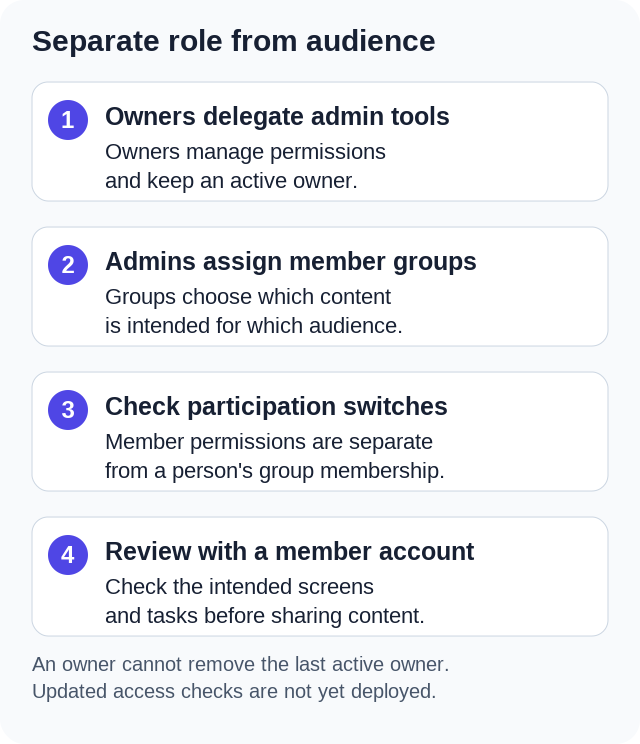
You invite members, check rosters, sort people into groups and set what each person can do, all in one place. Owners give each admin only the tasks they need. Groups decide who sees each document, announcement and other item. The directory helps members reach one another.
Putting someone in a group does not make them an admin. Nor does it change who can vote in an election that already exists.
Getting members in
Invite members by email, one at a time or in bulk from a spreadsheet. The bulk upload reads names, titles, emails and roles. It shows you a table to review before anything is sent. You can check the whole batch without sending, so mistakes show up before members see them.
An invite can place someone in groups ahead of time. So a new committee member lands in the right places the first time they sign in. When an admin sets a member's name or title, it can be locked so the record stays the same.
Check the list before anyone is emailed
The people who know if a roster is right are often building reps and committee chairs, not the officer with the spreadsheet. So you can upload a roster and keep it quiet. No email goes out, no invite link is made, and nothing counts against your plan until you say the list is right.
You choose who checks each roster. Share it with a group or with named people. They can read the roster and nothing else. They cannot edit it, send it or invite anyone. A roster you have not shared is seen only by the admins who can invite. Nobody else can even tell it exists.
When the list is right, sending turns each row into a normal invite. Anyone who is already a member, or already has an invite, is skipped instead of emailed twice. So if a roster stopped at your member limit, you can send it again once the limit is raised.
Groups that do real work
Groups are more than labels. A group can be the audience for a document, an announcement, an event, a poll, an election or a chat channel. Set up the finance committee once, and you can send all its content to that group from then on. Each group has a name, a description and a color.
Groups also show you who takes part in named polls. You can see which parts of your membership are active and which are not.
Roles and permissions
There are three roles. Owners can do it all. Members get the normal member view. Admins sit in between, and this is where you get control. Each admin gets only the permissions you pick. There is one for inviting members, one for uploading documents and one for sending announcements. Others cover opening and closing elections, the calendar, chat channels, the audit log, billing and more.
Split permissions help when volunteers share the work. The person who posts the minutes does not need to open an election. The treasurer does not need to run chat.
You can also stop one member from using certain parts of the app. The app then hides what that member cannot use, so they never tap into a dead end.
Delegate album editing
The Event gallery lets you pick who can view an album and who can edit it. Give a committee the right to view a published album. Then pick editor groups or named members to prepare the photos. Editing an album does not make someone an admin for the whole organization. Owners and admins with Manage Event Gallery still control publishing, access changes and deleting albums.
The directory
Members can search a directory to find each other by name, with titles and photos. One tap sends an email. You can turn the directory off. For a regular member who belongs to a group, it shows only people who share a group with them. So a large organization does not show its full roster to all members.
Next to each member who has an email address, an "Email" button opens your own mail app. It sends nothing on its own, and the directory does not show the address. A "Sections" menu stays on screen and takes members straight to each part of the app they are allowed to use, including the directory and their profile.
Admin actions go into an audit log with who did it, what it touched and when. You can download the log as a spreadsheet.
Read about roles and limited access
NIST's role-based access-control reference and OWASP's authorization guide cover general ideas about permissions. This page and Help describe the portal's actual roles, group audiences and preview limits. A general guide cannot tell you how your own portal is set up.
References checked October 12, 2026. That date is when we checked the source links. It is not a human or expert review of this page.
FAQ
Can we import our existing member list?
Yes. Export your list to a spreadsheet with names, emails, titles and roles. Then use the bulk invite. Check the batch first to catch problems before invites go out.
What is the difference between an owner and an administrator?
Owners have every permission and manage the other admins. Admins have only the permissions they are given. An organization always keeps at least one owner.
Can we hide the member directory?
Yes. The member directory has its own on and off switch. You can also leave it on and rely on groups, so members see the people they actually work with.
See it in your own organization
60 day free trial for up to 25 people. No credit card. Leave any time and take your member list and vote records with you, free. Every plan includes every feature.